

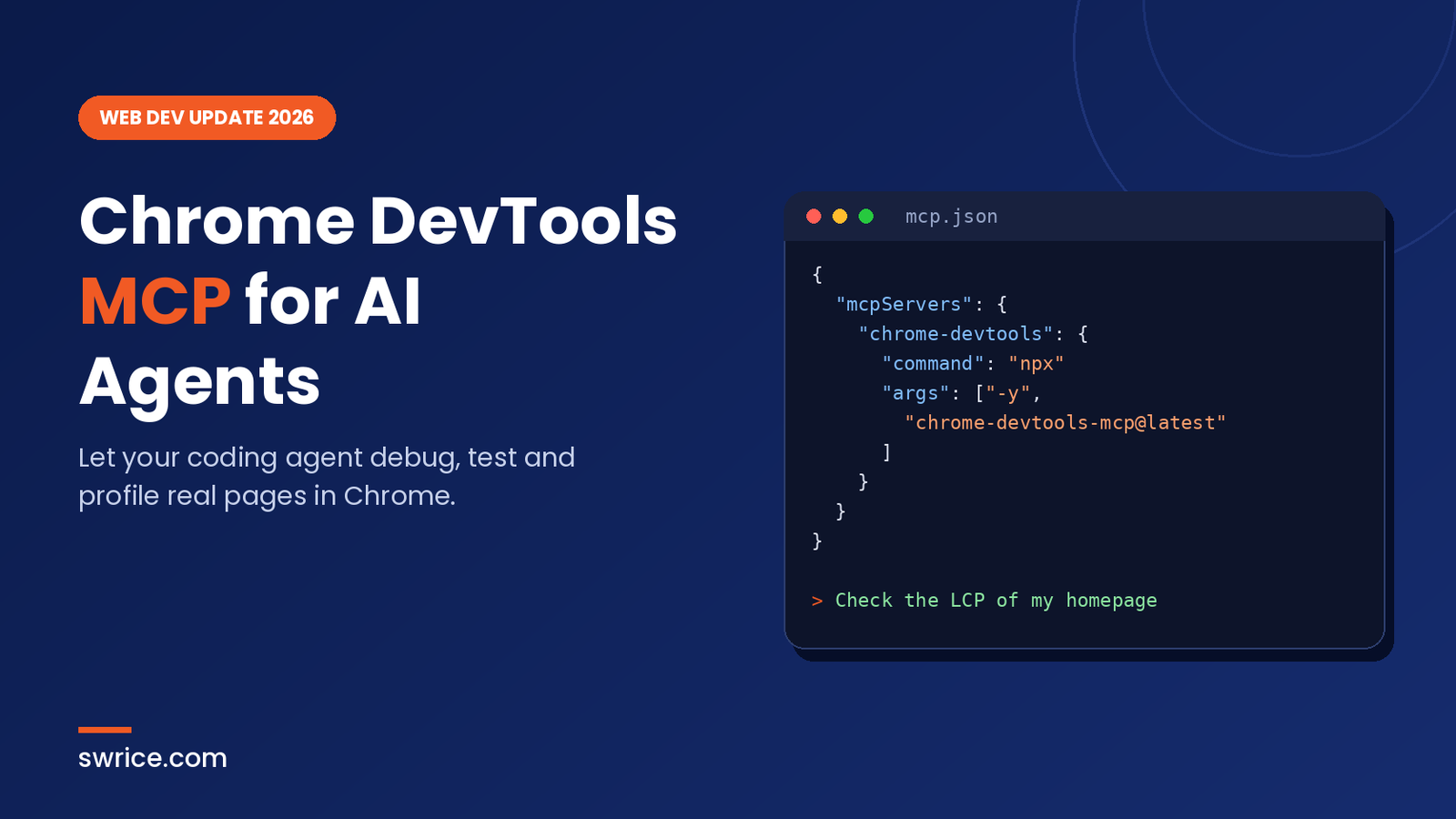
Chrome DevTools MCP lets your AI coding agent open a real Chrome browser, inspect the page and fix what it finds. Until now, most agents wrote front-end code blind. They could not see the console, the network tab or a performance trace. As a result, you had to copy errors back into the chat by hand.
That gap is closing fast. Google’s October 2026 DevTools update adds new agent controls to the server, including plugin support and safer defaults. In this guide, you will learn what Chrome DevTools MCP does and how to set it up. You will also see how to use it safely every day.
What Is Chrome DevTools MCP?
The Model Context Protocol (MCP) is an open standard for connecting AI assistants to outside tools. Chrome DevTools MCP is Google’s official MCP server for Chrome. In other words, it gives an agent the same DevTools features you use every day.
Google first released it as a public preview in September 2025. Since then, it has grown into a core part of what Google now calls “DevTools for agents”. It works with any MCP client, such as Claude Code, Cursor, Gemini CLI, VS Code with Copilot and many others.
Under the hood, the server controls Chrome through the Chrome DevTools Protocol. First, your agent sends a tool call. Then the server runs it in the browser. The result comes back as text, a screenshot or a trace summary.
What Your Agent Can Do With It
The server exposes a large set of tools. For example, these are the groups you will use most:
- Navigation: open pages, switch tabs and wait for content to load.
- Input automation: click, fill forms, type text and handle dialogs.
- Debugging: take screenshots, read console messages and run scripts on the page.
- Network: list requests and inspect a single request in detail.
- Performance: record a trace with
performance_start_traceand get Core Web Vitals insights. - Emulation: resize the viewport or emulate slower CPU and network.
What’s New in the October 2026 Update
The latest release notes cover Chrome 153 and 154. Notably, the agent section brings several practical changes to Chrome DevTools MCP:
- Agent Plugins 1.0 support, so agents can load modular plugin extensions.
- An option to disable JavaScript evaluation, so an agent can inspect a page without running scripts.
- On-demand source maps, which cut memory use on large sites.
- Filesystem roots and path permissions that you can set in the CLI.
- Better heap snapshot queries by retained size or property name.
- New PWA tools to automate installation and lifecycle checks.
DevTools itself also gained a new Ads panel and soft navigation insights. In addition, the Network panel now has an “Edit and resend as fetch” option. Together, these updates make browser debugging much easier to automate.
How to Set Up Chrome DevTools MCP
Setting up Chrome DevTools MCP takes about two minutes. First, check the requirements listed in the official GitHub repository:
- A current Node.js LTS version and npm.
- Chrome stable (current version) or newer.
- An MCP-compatible AI coding tool.
If you need to upgrade Node first, our Node.js 26 LTS upgrade guide walks you through it.
Generic MCP Client Config
Most clients read a JSON config file. Add this server entry to it:
{
  "mcpServers": {
    "chrome-devtools": {
      "command": "npx",
      "args": ["-y", "chrome-devtools-mcp@latest"]
    }
  }
}
The @latest tag means your client always pulls the newest version. Therefore, you get fixes and new tools without extra work.
Claude Code Setup
In Claude Code, you can add the server with one command:
claude mcp add chrome-devtools -- npx -y chrome-devtools-mcp@latestAlternatively, the repository offers a Claude Code plugin that installs the server together with its skills. Once it is running, test it with a simple prompt such as “Check the LCP of web.dev”. If Chrome opens and you get a result, the setup works.
Useful Configuration Flags
You can pass extra flags in the args array. These are the ones most developers need:
--headlessruns Chrome without a window, which suits CI pipelines.--isolateduses a temporary profile that is deleted when the server stops.--slimexposes a smaller tool set, which saves tokens on simple tasks.--browser-urlconnects to a Chrome instance that is already running.--channelpicks a Chrome channel, such ascanaryorbeta.--no-usage-statisticsturns off usage statistics, which are on by default.
Token use matters here. Screenshots and traces can be large, so --slim is a good default for quick checks. For more ways to keep costs down, see our guide to fixing high token usage in Claude.
Practical Workflows for Web Developers
Now for the fun part. Here are five workflows where Chrome DevTools MCP saves real time.
1. Verify Code Changes in the Browser
After an edit, ask the agent to open the page and confirm the change works. It can take a screenshot and read the console. Consequently, you catch broken layouts before you even switch windows.
2. Fix Network and Console Errors
Try a prompt like “Some images on localhost:8080 are not loading. What’s happening?” The agent checks failed requests, reads the error and then patches the code.
3. Test Forms and User Flows
The agent can fill inputs, click buttons and follow a checkout or login flow. This is useful for WooCommerce and LMS sites, where one broken step costs real sales.
4. Debug CSS and Layout
Ask the agent why a section looks wrong. It inspects the live DOM and computed styles. As a result, its fix is based on what the browser renders, not on guesses.
5. Automate Performance Audits
Finally, ask “This page loads slowly. Make it faster.” With Chrome DevTools MCP, the agent records a trace and reads the LCP insights. Then it suggests fixes, such as image sizing or render-blocking scripts. Afterwards, it can run the trace again to prove the gain.
Security and Privacy Tips for Chrome DevTools MCP
Because the agent controls a real browser, you should treat it with care. The official README warns that the server exposes browser content to your MCP client. Here are some safe habits:
- Use
--isolatedso the agent never sees your logged-in sessions. - Avoid opening pages with personal or customer data while the agent is connected.
- Use the new option to turn off JavaScript evaluation when you only need read access.
- Set filesystem roots so the agent can only touch your project folder.
- Add
--no-performance-cruxif you do not want trace URLs sent to the CrUX API.
These steps matter even more for unattended agents. One example is an AI coding agent for GitHub that opens pull requests without you watching.
Chrome DevTools MCP vs Playwright MCP
Developers often ask which browser server to choose. Playwright MCP focuses on cross-browser automation and testing. In contrast, Chrome DevTools MCP focuses on deep debugging inside Chrome, such as performance traces, heap snapshots and network details.
In short, pick Playwright for end-to-end tests across browsers. Pick the DevTools server when you need to know why a page is slow or broken. Many teams use both side by side.
So, is Chrome DevTools MCP worth adding to your stack? For most front-end and WordPress developers, the answer is yes. It costs nothing, takes minutes to install, and removes the most tedious part of AI-assisted debugging: copying errors back and forth.
FAQ
Is Chrome DevTools MCP free?
Yes. It is an open-source project from the Chrome DevTools team, and you install it from npm at no cost.
Does it work with browsers other than Chrome?
Officially, it supports Google Chrome and Chrome for Testing only. Other Chromium browsers may work, but Google does not guarantee it.
Which AI tools support it?
Any MCP client can use it. Popular choices include Claude Code, Cursor, Gemini CLI and VS Code. Our Claude models comparison can help you pick a model for agent work.
Can I use it in CI?
Yes. Run it with --headless and --isolated so each job starts with a clean browser.
Conclusion
Chrome DevTools MCP turns your coding agent from a blind code writer into a real browser debugger. It can verify changes, trace slow pages and test forms on its own. Moreover, the October 2026 update adds the safety controls teams need for serious use.
If you have not tried Chrome DevTools MCP yet, start with the one-line setup, use --isolated, and try a performance prompt on your own site today. You will likely wonder how you debugged without it.
Leave a Reply