

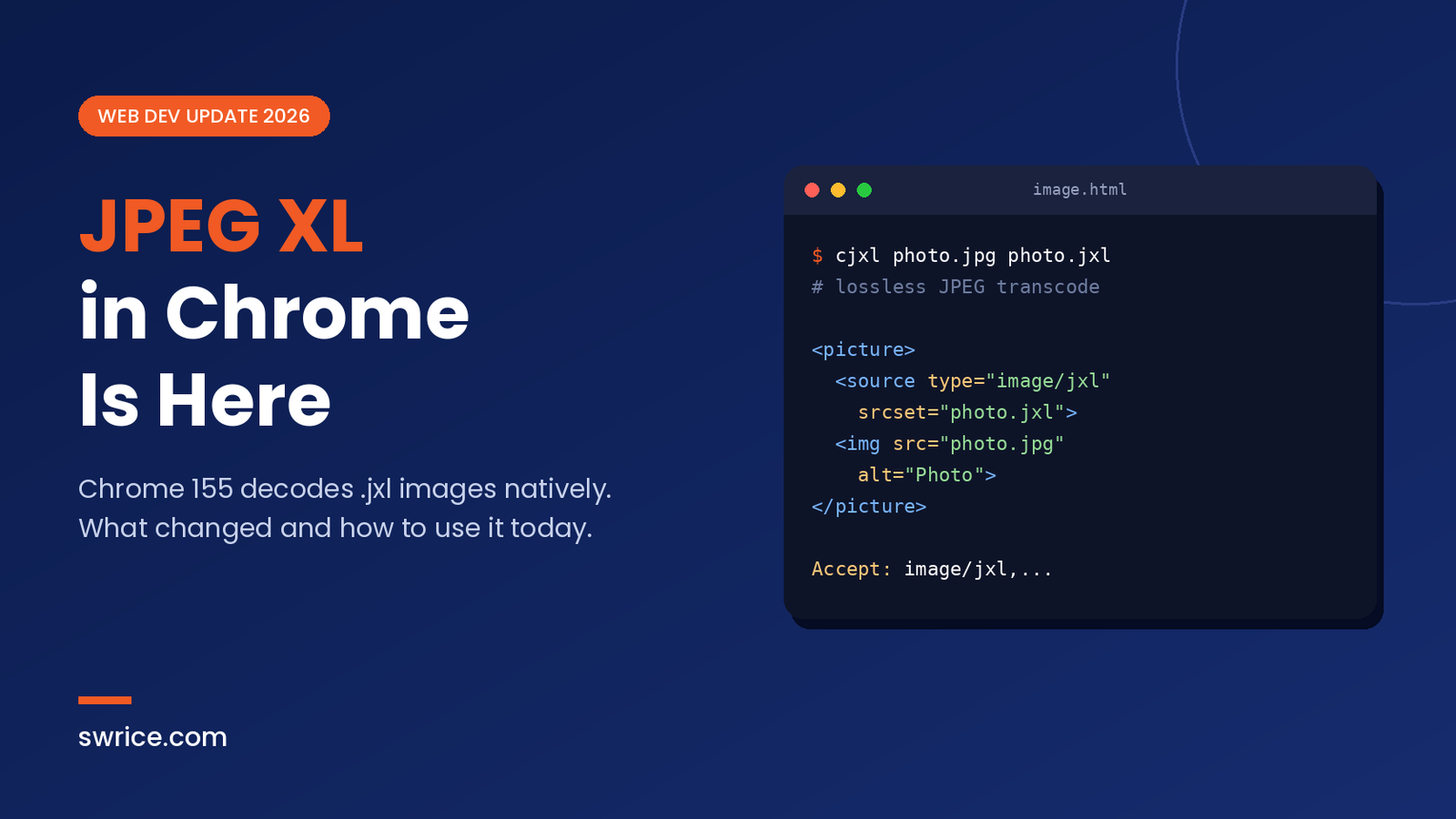
JPEG XL in Chrome is finally real. Starting with Chrome 155, the browser decodes .jxl images natively, with no flags and no polyfills. For web developers, this is the biggest image format change since AVIF arrived.
In this guide, you will learn what shipped, which browsers support it, and how to serve JPEG XL safely with a fallback. We also cover the WordPress side, because core still blocks .jxl uploads by default.
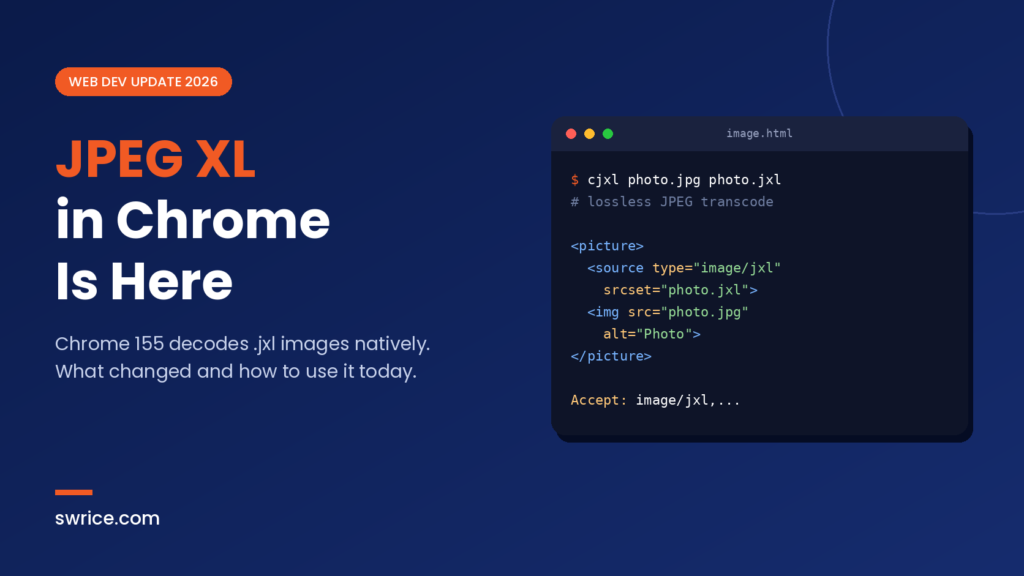
What Changed: JPEG XL in Chrome 155
Google announced the change on the Chrome for Developers blog on October 6, 2026. According to the official announcement, Chrome 155 and later can decode JPEG XL images. The Chromium Dash schedule lists October 6 as the Chrome 155 stable date.
This is a big turnaround. Chrome removed its old experimental JPEG XL code back in 2022. Since then, many developers have asked Google to bring it back. Now it is back, and this time it is on by default.
Note that this is decoding only. Chrome can display .jxl files, but it does not create them. You still need an encoder, such as the cjxl tool from libjxl, to make the files.
Why Google Used a Rust Decoder
The main blocker in the past was security, not compression. Image decoders parse untrusted files, so memory bugs in them are a classic attack path. To solve this, Chrome uses jxl-rs, a decoder written entirely in Rust.
Google says fuzzing and AI-assisted code review found no memory-safety bugs in the implementation. In other words, the team picked a safer language first and shipped second. Mozilla has followed a similar path with the same decoder.
Key Features of the JPEG XL Format
So why should you care about another image format? JPEG XL in Chrome matters because the format tries to cover many use cases in one file type. Here are the features that matter most for websites:
- Lossless JPEG transcoding. You can convert an existing JPEG to JPEG XL with zero quality loss, then rebuild the exact original JPEG later.
- Lossy and lossless modes. One format handles photos, screenshots and graphics.
- Progressive decoding. Images can render a rough preview first, then sharpen as more data arrives.
- HDR and wide colour gamut. High bit depths and modern colour spaces are built in.
- Transparency and animation. It can replace PNG with alpha and animated GIFs in many cases.
Google’s announcement claims 30–50% better compression than JPEG. However, the blog gives no test conditions, so treat that number as a best case. Real savings depend on your images and settings.
Browser Support for JPEG XL in 2026
JPEG XL in Chrome is only part of the picture. Chrome is not alone anymore, which is great news. Still, support is uneven, so check the details before you rely on it. Based on Can I use at the time of writing:
- Chrome (desktop): supported from version 155.
- Chrome for Android: listed as supported in recent versions.
- Firefox: listed as supported from version 158, using the same Rust decoder.
- Safari: partial support since Safari 17, for still images only. Animation and progressive rendering are not supported.
- Edge: not yet listed as supported, even though it shares the Chromium engine.
As a result, you cannot serve .jxl alone yet. You still need a fallback for older browsers and for any engine that has not shipped it. Fortunately, that is easy to set up.
How to Use JPEG XL in Chrome With a Safe Fallback
The safest way to adopt JPEG XL in Chrome today is the <picture> element. The browser picks the first source it understands and skips the rest. Older browsers simply fall through to the regular <img>.
<picture>
  <source type="image/jxl" srcset="hero.jxl">
  <source type="image/avif" srcset="hero.avif">
  <source type="image/webp" srcset="hero.webp">
  <img src="hero.jpg" alt="Product hero" width="1200" height="675">
</picture>
Keep the width and height attributes on the <img> tag. They stop layout shift, whichever source the browser chooses. Also, Google’s guidance suggests trying both AVIF and JPEG XL, because each one wins on different images.
Creating JPEG XL Files With cjxl
To produce .jxl files, install the reference tools from libjxl. Then use cjxl to encode and djxl to decode. For JPEG input, cjxl performs lossless transcoding by default:
# Lossless transcode of an existing JPEG
cjxl photo.jpg photo.jxl

# Mathematically lossless encode from a PNG
cjxl -d 0 screenshot.png screenshot.jxl

# Rebuild the original JPEG to verify
djxl photo.jxl restored.jpg
Lossless transcoding is the low-risk win here. Your images look exactly the same, yet the files usually get smaller. Plus, you can always recover the original JPEG if needed.
Content Negotiation With the Accept Header
Chrome 155 also adds image/jxl to the Accept header it sends for images. Therefore, a server or CDN can detect support and return a .jxl file from the same URL. If you go this route, send a Vary: Accept header so caches store each version separately.
Testing Your Images in DevTools
Once your markup is live, check that it works. Open DevTools, go to the Network panel, and filter by images. Then reload the page and look at the Type column.
If you see jxl there, JPEG XL in Chrome is doing its job. If you see avif or jpeg instead, check the type attribute and the MIME type your server sends. A wrong Content-Type header is the most common cause of a silent fallback.
After that, run a Lighthouse report or a field test to compare page weight. In addition, test in Safari and Edge, since their support differs from Chrome.
JPEG XL in Chrome and WordPress Sites
Here is the catch for WordPress users. WordPress core does not allow .jxl uploads out of the box. The Trac ticket for JPEG XL support was closed as “maybelater” because browser and server support were missing at the time.
Now that browser support exists, that may change. Until then, you can allow the file type with a small snippet in a custom plugin. Test it on staging first, and only give upload rights to trusted users.
<?php
// Allow .jxl uploads (test on staging first).
add_filter( 'upload_mimes', function ( $mimes ) {
    $mimes['jxl'] = 'image/jxl';
    return $mimes;
} );
Be aware of the limits, though. Many servers’ GD or Imagick builds cannot read JPEG XL, so WordPress may not create thumbnails or responsive sizes. In practice, many sites will get better results from a CDN or image plugin that converts images on the fly.
If you work on site performance more broadly, our guide to Chrome HTTPS by default covers another recent Chrome change worth checking. You can also debug image loading with AI agents using Chrome DevTools MCP.
Should You Switch to JPEG XL Now?
For most sites, the answer is “add it, don’t replace.” JPEG XL in Chrome is a strong reason to add .jxl as an extra source. However, it is not yet a reason to drop JPEG, WebP or AVIF.
These cases benefit the most right now:
- Photography and portfolio sites that need high-fidelity or lossless images.
- Large existing JPEG libraries, where lossless transcoding saves bytes with no visual risk.
- Pages with big hero images, where progressive decoding improves perceived speed.
Meanwhile, simple blogs with small images may see little gain. In that case, measure first. Compare file sizes and Largest Contentful Paint before and after, and keep the change only if the numbers improve.
FAQ
Is JPEG XL enabled by default in Chrome?
Yes. From Chrome 155, JPEG XL decoding works without any flag. Earlier versions kept it behind a flag that was off by default.
Can Chrome save or export JPEG XL images?
No. The new support is decoding only. You need an encoder such as cjxl or an image service to create .jxl files.
Does Safari support JPEG XL?
Partly. Safari 17 and later can show still JPEG XL images, but not animated ones or progressive rendering.
Is JPEG XL better than AVIF?
It depends on the image. JPEG XL shines with lossless and high-fidelity photos, while AVIF often wins at low bitrates. Google recommends testing both.
Conclusion
JPEG XL in Chrome turns a long-requested format into something you can actually ship. With Chrome 155, Firefox support listed, and a memory-safe Rust decoder, the format finally has real momentum.
Start small. Add a .jxl source inside <picture>, transcode a few heavy JPEGs, and measure the results. Then roll it out wider if your numbers improve.
Sources
Need Help With Your Website or Web App?
Swrice builds and customises WordPress sites, plugins and web apps. Whether you need an upgrade, a custom feature or a fix, our team can handle it for you.
Leave a Reply