

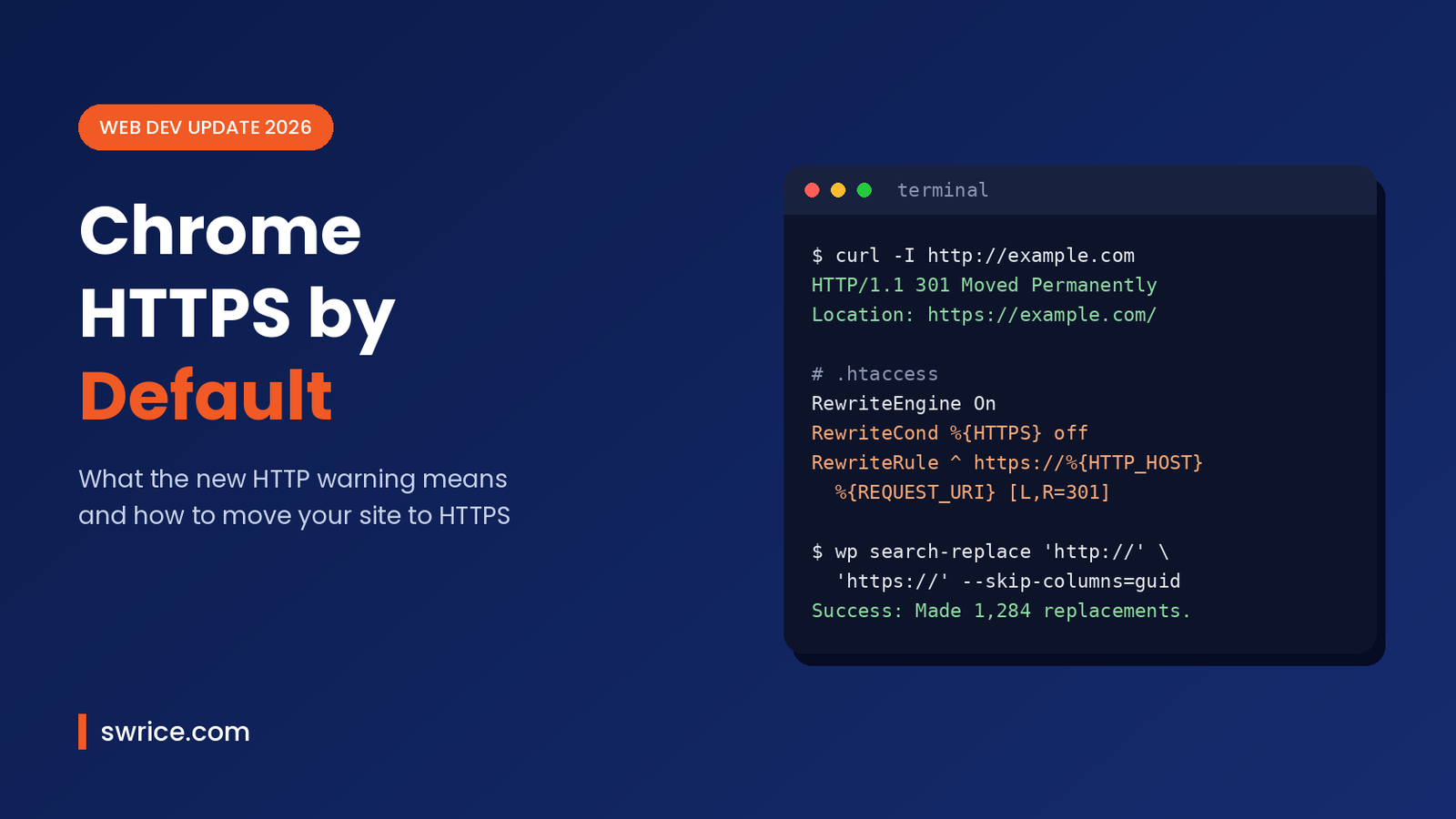
Chrome HTTPS by default is now the standard behaviour for everyone using Google Chrome. Starting with Chrome 154, the browser tries a secure connection first. If a public site only works over plain HTTP, Chrome stops and asks the visitor before loading it.
For most site owners, this is good news. However, if any part of your site still relies on HTTP, some visitors will now see a warning screen instead of your page. In this guide, we explain what changed, who is affected and how to move a WordPress site fully to HTTPS.
What Is Chrome HTTPS by Default?
Chrome has offered a setting called “Always Use Secure Connections” since 2022. When it is on, Chrome upgrades every navigation to HTTPS. If the upgrade fails, the browser shows a warning that the visitor can bypass.
Until now, that setting was opt-in. According to Google’s announcement, Chrome 154 turns on the public-sites version of the setting for all users. The Chrome 154 release notes describe it simply: Chrome now asks users before using plain HTTP.
In other words, with Chrome HTTPS by default, HTTPS is no longer just “recommended”. It is the path Chrome expects every public website to support.
The Rollout Timeline
Google rolled this out in stages rather than flipping a single switch. Here is the timeline it shared:
- 2022: “Always Use Secure Connections” launched as an optional setting.
- Chrome 141: Google tested the public-sites default with a small share of users.
- Chrome 147 (April 2026): the feature was enabled for Enhanced Safe Browsing users, which Google says is over 1 billion people.
- Chrome 154 (October 2026): the feature became the default for all users.
Why Google Made This Change
According to Google, HTTPS usage climbed quickly between 2015 and 2020. After that, it stalled at roughly 95–99% of Chrome navigations. The last few percent turned out to be the hardest part.
That small gap still matters. A single insecure navigation can let an attacker on the same network read or change the page. Therefore, Google decided that Chrome HTTPS by default was the simplest way to protect people without asking them to change any settings.
How the New HTTP Warning Works
The warning is designed to be useful rather than noisy. First, Chrome tries HTTPS for every connection. Then, only if HTTPS is unavailable, it shows a warning before the first visit to that insecure public site.
Visitors can still click “Continue to site” and load the page. In addition, Chrome will not keep warning about an HTTP site that a user visits regularly. Instead, it focuses on new or not-recently-visited sites.
Google also shared data from its experiments. Warnings appeared on far fewer than 3% of navigations. Moreover, the median user saw fewer than one warning per week.
What Is Excluded?
Importantly, Chrome HTTPS by default only covers public websites. Private addresses are left alone, so local development and office networks keep working. Exclusions include:
- Local IP addresses such as
192.168.0.1. - Single-label hostnames and internal shortlinks such as
intranet/. - Sites you have visited recently over HTTP (no repeated warnings).
Users can also turn the setting off. Meanwhile, companies that manage Chrome can control it with the HttpsOnlyMode enterprise policy.
Does Chrome HTTPS by Default Affect Your Website?
For many sites, the answer is no. Google says roughly 95–99% of Chrome page loads already use HTTPS. Even so, the remaining share is not zero, and the change can still hurt you in a few common situations:
- Your site has no SSL certificate at all, or the certificate has expired.
- An old subdomain, landing page or staging link still runs on HTTP.
- Emails, QR codes or printed materials point to
http://links that never redirect. - Your HTTPS pages load images, scripts or fonts over HTTP (mixed content).
As a result, a first-time visitor from an ad or an email could hit a warning screen. That costs trust, clicks and sales. Fortunately, the fix is usually quick.
How to Check Your Site in 2 Minutes
You can preview Chrome HTTPS by default before your visitors do. First, turn on the setting yourself. In Chrome, open Settings → Privacy and security → Security and enable “Always use secure connections”. Google itself recommends this step to find sites that still rely on HTTP.
Next, test your domain from a terminal. A healthy site returns a 301 redirect to the HTTPS version:
curl -I http://example.com

HTTP/1.1 301 Moved Permanently
Location: https://example.com/
Finally, open your site with DevTools and check the Console for mixed content warnings. If you use AI coding agents, our Chrome DevTools MCP guide shows how an agent can inspect these errors for you.
How to Move a WordPress Site to HTTPS
If your check failed, follow these steps to get ready for Chrome HTTPS by default. Always take a full backup of your files and database before you start.
Step 1: Install an SSL Certificate
Most hosts offer free certificates with one click, usually from Let’s Encrypt. Turn it on in your hosting panel and make sure it renews automatically.
Step 2: Update the WordPress URLs
Go to Settings → General and change both the WordPress Address and Site Address to start with https://. Alternatively, you can set them in wp-config.php:
define( 'WP_HOME', 'https://example.com' );
define( 'WP_SITEURL', 'https://example.com' );
define( 'FORCE_SSL_ADMIN', true );
Step 3: Redirect All HTTP Traffic
Next, add a permanent 301 redirect so every old link lands on HTTPS. On Apache, add this to the top of your .htaccess file:
RewriteEngine On
RewriteCond %{HTTPS} off
RewriteRule ^ https://%{HTTP_HOST}%{REQUEST_URI} [L,R=301]
On Nginx, use a separate server block for port 80 instead:
server {
    listen 80;
    server_name example.com www.example.com;
    return 301 https://$host$request_uri;
}
Step 4: Fix Mixed Content
Old posts often contain hard-coded http:// image links. WP-CLI can replace them across the database in one command. Run it with --dry-run first to preview the changes:
wp search-replace 'http://example.com' 'https://example.com' --skip-columns=guid --dry-run
wp search-replace 'http://example.com' 'https://example.com' --skip-columns=guid
After that, check theme files and custom plugins for hard-coded URLs too. If you maintain custom code, our guide on how to customize WordPress plugins explains how to change it safely.
Step 5: Add HSTS (Optional but Recommended)
Once everything works on HTTPS, you can add a Strict-Transport-Security header. It tells browsers to always use HTTPS for your domain. Start with a short max-age and increase it once you are confident.
Header always set Strict-Transport-Security "max-age=31536000; includeSubDomains"Chrome HTTPS by Default and SEO
HTTPS has been part of good SEO practice for years. Now, however, the stakes are more direct. A warning screen means some visitors leave before your page even loads, and that hurts engagement.
In practice, Chrome HTTPS by default turns a missing certificate from a minor SEO issue into a real conversion problem. That is especially true for paid traffic, where every lost click costs money.
After switching, update your sitemap, canonical URLs and internal links to HTTPS. Then submit the HTTPS version in Google Search Console. For more hardening ideas, see our list of the best WordPress security plugins for 2026.
Frequently Asked Questions
Can visitors still open HTTP sites in Chrome?
Yes. The warning is bypassable with “Continue to site”. However, many visitors will simply leave, so you should not rely on that.
Does Chrome HTTPS by default break localhost development?
No. Local IP addresses, single-label hostnames and other private sites are excluded from the default setting.
Will my HTTP-to-HTTPS redirect trigger the warning?
Google notes that many HTTP sites only exist to redirect to HTTPS. Chrome tries HTTPS first, so a working HTTPS version means visitors never see the HTTP page at all.
Does this change affect other browsers?
This specific change is for Chrome. Still, every modern browser treats HTTP as less safe, so moving to HTTPS helps across the board.
Is a free SSL certificate good enough?
Yes. A free Let’s Encrypt certificate provides the same encryption that browsers require. Just make sure it renews automatically.
Conclusion
Chrome HTTPS by default closes one of the last gaps in web security. For site owners, the message is clear: every public page should load over HTTPS, with no exceptions. Check your domains today, add redirects and clean up mixed content. That way, your visitors see your site instead of a warning.
Sources
Need Help With Your Website or Web App?
Swrice builds and customises WordPress sites, plugins and web apps. Whether you need an upgrade, a custom feature or a fix, our team can handle it for you.
Leave a Reply