

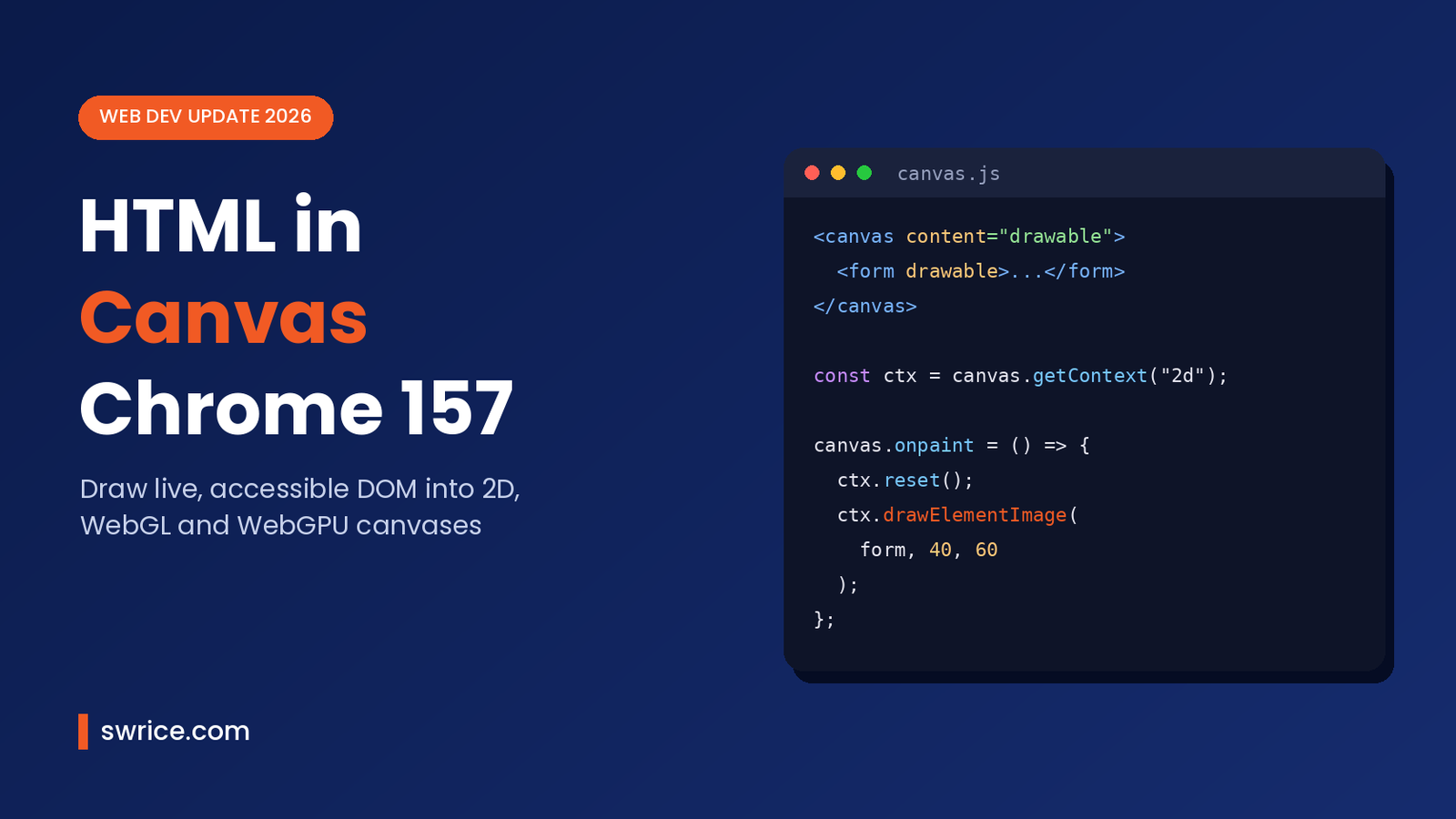
HTML in Canvas is now stable in Chrome 157, and it changes how we build canvas-heavy apps. Until now, a <canvas> was a box of pixels. Text inside it could not be selected, translated or read by screen readers.
With this new API, you can draw real, live DOM elements straight into a 2D, WebGL or WebGPU canvas. The Chrome team announced the stable release on the Chrome for Developers blog on October 26, 2026. In this guide, we explain what it does, how to use it, and where it fits in real projects.
What Is HTML in Canvas?
In short, HTML in Canvas is a browser API that renders a DOM subtree into a canvas context. You write normal HTML inside the canvas element. Then you tell the browser to paint that HTML into the canvas wherever you want.
The important part is that the content stays live. Buttons still click, inputs still accept typing, and the text stays in the accessibility tree. As a result, you get the visual freedom of canvas without throwing away what the DOM gives you for free.
The idea started as a WICG explainer, then moved through a Chrome origin trial. Now, with Chrome 157, it ships stable and needs no flag.
Why Developers Care About This Update
For years, canvas apps had to rebuild basic UI from scratch. Think of design tools, whiteboards, games and charting libraries. Each one wrote its own text layout, its own input fields and its own focus handling.
The usual workaround was to float HTML overlays on top of the canvas. However, overlays must be repositioned on every frame, which adds main-thread work. Moreover, they cannot take part in shaders or 3D transforms. This API removes that trade-off.
How HTML in Canvas Works
The API is built from a few small pieces. Once you know them, the rest is easy to follow:
content="drawable"on the<canvas>element opts its children into layout.drawableon a child element marks it as something you can paint into the canvas.- The
paintevent fires on the canvas when drawable content changes, so you know when to redraw. drawElementImage()draws an element into a 2D context.updateElementGeometry()keeps hit-testing in sync when you place elements yourself, for example in 3D.
For WebGL and WebGPU, the explainer lists matching methods: texElementSubImage2D and drawElementImageToTexture. In other words, the same HTML can become a texture in a 3D scene.
How to Use HTML in Canvas in Chrome 157
Let us walk through a basic 2D example. First, prepare the markup. Next, draw the element inside the paint event. Finally, add a fallback for browsers without support.
Step 1: Mark Up the Canvas
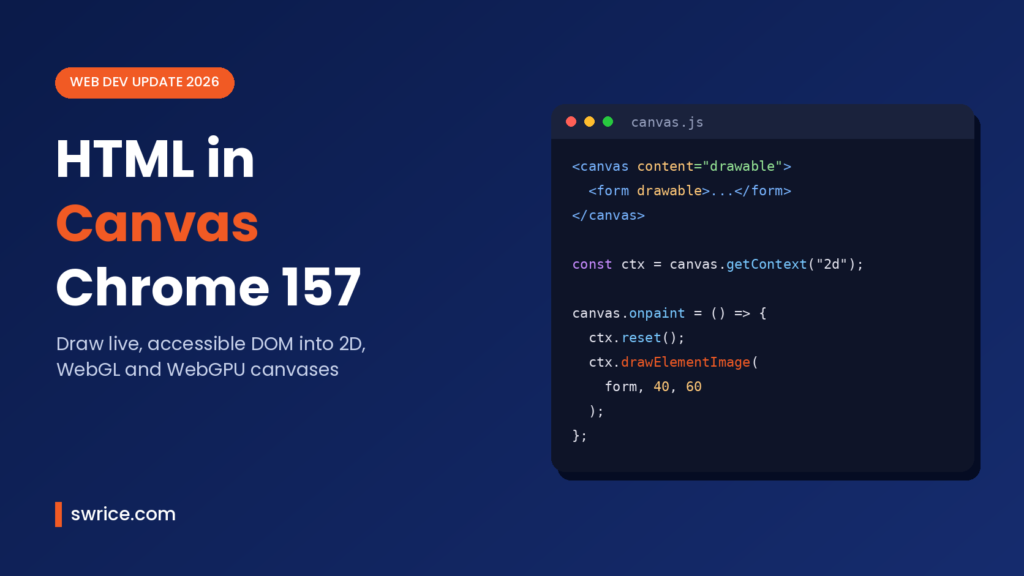
Add content="drawable" to the canvas and drawable to each child you want to render:
<canvas id="canvas" width="600" height="400" content="drawable">
  <form id="signup" drawable>
    <label for="email">Email</label>
    <input id="email" type="email">
    <button>Subscribe</button>
  </form>
</canvas>
Step 2: Draw It in the Paint Event
Then get a 2D context and redraw inside onpaint. The browser fires this event when the drawable content needs repainting:
const canvas = document.getElementById("canvas");
const ctx = canvas.getContext("2d");
const form = document.getElementById("signup");

canvas.onpaint = () => {
  ctx.reset();
  ctx.drawElementImage(form, 40, 60);
};
In 2D, drawElementImage() updates the element geometry for you. So clicks land on the right spot, and screen readers get correct bounds. According to the official 2D guide, the method also accepts sizes and crop values, much like drawImage():
// Scaled: element, dx, dy, dWidth, dHeight
ctx.drawElementImage(form, 100, 150, 180, 60);

// Cropped and resized
ctx.drawElementImage(form, 0, 0, 90, 30, 100, 150, 180, 60);
Step 3: Add Feature Detection
Because this is a Chromium feature for now, always detect support first. The Chrome team suggests a simple check:
function supportsHtmlInCanvas() {
  const canvas = document.createElement("canvas");
  canvas.setAttribute("content", "drawable");
  return canvas.content === "drawable";
}

if (!supportsHtmlInCanvas()) {
  // Fall back to an HTML overlay or a plain DOM layout
}
If the check fails, keep your old overlay approach or show a normal DOM version of the UI. That way, nobody gets a blank canvas.
Using It With WebGL, WebGPU and 3D Libraries
In 3D, the browser cannot guess where your element ends up on screen. Therefore, you build a transform yourself and pass it in:
const transform = new DOMMatrix().translate(x, y);
canvas.updateElementGeometry(form, { canvasTransform: transform });
You do not have to wire this by hand, though. The Chrome documentation lists early community support in Three.js, Babylon.js, PlayCanvas and PixiJS (v8.19.0 and later). Note that Google marks these integrations as third-party and experimental.
Accessibility, SEO and Privacy Benefits
This is where HTML in Canvas really stands out. Drawable content appears in the accessibility tree just like regular DOM. Also, aria-hidden and inert still work as expected.
In addition, the Chrome blog says these features keep working on rendered content:
- Find-in-page and text selection
- Copy and paste, and context menus
- Page translation and autofill
- Browser extensions
For SEO, the blog notes that crawlers and AI agents can index the DOM content you render into the canvas. That is a big win over text painted with fillText(), which search engines cannot read.
What the Browser Will Not Paint
Since canvas pixels can be read back with JavaScript, the API must not leak private data. For that reason, the explainer excludes sensitive content from rendering, including:
- Cross-origin images, iframes and other embedded content
- Visited link styles
- System colours, themes and preferences
- Spelling and grammar markers
- Pending autofill values not yet exposed to JavaScript
So if a cross-origin image goes missing in your canvas, this is the reason. Use same-origin assets wherever you can.
Real-World Use Cases
So where should you actually use HTML in Canvas? Here are the cases the Chrome team highlights, plus our own view:
- Design and whiteboard tools: render real inputs and rich text inside the workspace, and ship less custom UI code.
- Charts and dashboards: use HTML for multi-line labels and legends instead of hand-measured text.
- 3D and WebXR: place readable panels, in-game terminals or menus on 3D surfaces.
- Media export: since
toBlob()andcaptureStream()include the drawn DOM, you can export HTML typography with shader effects to images or video.
Meanwhile, if you follow new Chrome features, you may also like our guides on the CSS random() function in Chrome 156 and JPEG XL in Chrome. For debugging canvas pages with AI help, see our Chrome DevTools MCP setup guide.
Should You Use HTML in Canvas Today?
For most content websites, the answer is not yet. A normal page does not need a canvas at all. On the other hand, if you already maintain a canvas-based product, it is worth testing right now.
Start small. For example, replace one overlay input or one label system. Then measure frame times and check how it behaves with a screen reader. Keep the fallback in place, because the Chrome blog does not list support in other browsers.
FAQ
Is HTML in Canvas supported in Firefox and Safari?
The Chrome announcement does not mention other browsers. It recommends feature detection, so treat it as Chromium-only for now.
Do I need a flag or origin trial?
No. From Chrome 157, the API is stable. The origin trial and the flag are no longer needed in that version.
Can users still interact with the drawn HTML?
Yes. In 2D, the browser keeps hit-testing in sync automatically. In 3D, you call updateElementGeometry() with your transform.
Will screen readers read the content?
Yes. Drawable elements stay in the accessibility tree, and aria-hidden and inert still apply.
Conclusion
HTML in Canvas finally lets the canvas and the DOM work together. You get live, accessible and indexable HTML inside 2D, WebGL and WebGPU scenes. Above all, you no longer need to rebuild text inputs and layout by hand.
Try it in Chrome 157, add feature detection, and keep a fallback for other browsers. Then watch the WICG repository, because the API may still grow.
Sources
Need Help With Your Website or Web App?
Swrice builds and customises WordPress sites, plugins and web apps. Whether you need an upgrade, a custom feature or a fix, our team can handle it for you.
Leave a Reply