

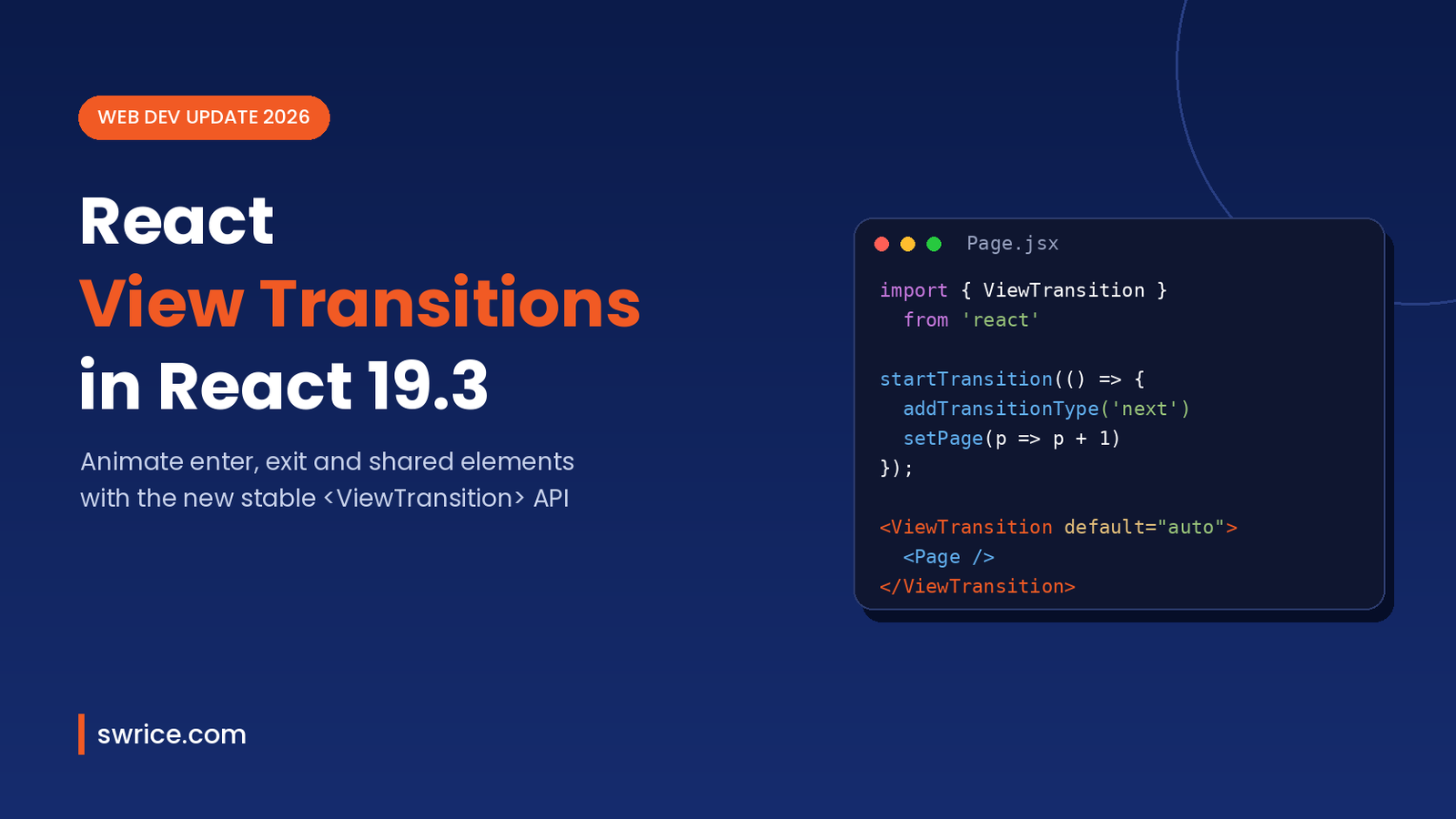
React View Transitions are now stable, and they make smooth UI animation part of React itself. The feature shipped in React 19.3 on September 9, 2026, after a long run in the experimental channel. As a result, you can animate pages, lists and shared elements without a heavy animation library.
In this guide, you will learn what the new <ViewTransition> component does, how to use it step by step, and which patterns work best. We also cover browser support, common mistakes and the other features that arrived with React 19.3.
What Are React View Transitions?
React View Transitions are a declarative wrapper around the browser’s View Transition API. The browser API takes a snapshot of the old UI, then animates to the new one. However, using it directly in React was awkward, because React controls when the DOM updates. You can read more about the native API in the Chrome for Developers guide.
React 19.3 solves this with a component. You wrap part of your tree in <ViewTransition>, and React decides when to start the browser transition. In other words, React now coordinates the snapshot timing for you.
Why This Matters for React Developers
Until now, most teams reached for a third-party library to animate route changes or list updates. That added bundle weight and extra code. With React View Transitions, the browser does the heavy lifting, while React only tells it what changed. Therefore, many simple page and card animations need just a few lines of code and some CSS.
How React View Transitions Work
React picks an animation type based on how the tree changed. According to the official release post, there are four cases:
- enter – the
<ViewTransition>is added to the tree. - exit – the
<ViewTransition>is removed. - update – its children change content or style.
- share – a named
<ViewTransition>is removed in one place and added in another.
There is one important rule. Only updates marked as Transitions will animate. For example, updates inside startTransition, a <Suspense> reveal or a useDeferredValue update all count. On the other hand, urgent updates such as typing in an input appear immediately, with no animation.
How to Use React View Transitions Step by Step
First, make sure your project runs React 19.3 or later. Then follow these steps.
Step 1: Upgrade React and React DOM
npm install react@^19.3.0 react-dom@^19.3.0Before you upgrade a production app, check the official React changelog for anything that affects your code. If you use a framework, also confirm it supports the new version. Our Next.js 16.4 guide covers the framework side for Next.js users.
Step 2: Wrap the Element You Want to Animate
Next, import the component and wrap the part of the UI that should animate. Here, the panel fades in and out when it mounts or unmounts:
import { ViewTransition, useState, startTransition } from 'react';

function Panel() {
  const [isOpen, setIsOpen] = useState(false);

  return (
    <>
      <button onClick={() => startTransition(() => setIsOpen(o => !o))}>
        Toggle
      </button>
      {isOpen && (
        <ViewTransition>
          <Details />
        </ViewTransition>
      )}
    </>
  );
}
Notice the startTransition call. Without it, the state change is urgent, so nothing animates. This is the most common reason a first attempt seems “broken”.
Step 3: Customise the Animation With CSS
By default, the browser uses a simple cross-fade. To change it, pass a View Transition Class to the component and style it with the view transition pseudo-elements:
<ViewTransition enter="slide-in" exit="slide-out">
  <Details />
</ViewTransition>

/* styles.css */
::view-transition-new(.slide-in) {
  animation: 250ms ease-out both slide-from-right;
}
::view-transition-old(.slide-out) {
  animation: 200ms ease-in both fade-away;
}
You still write normal CSS keyframes for slide-from-right and fade-away. If you enjoy new CSS features, our post on the CSS random() function shows another fresh addition to the platform.
Direction-Aware React View Transitions With addTransitionType
Sometimes the same state change needs different animations. A slideshow is a good example, since “next” and “previous” should slide in opposite directions. React 19.3 adds addTransitionType for exactly this case:
import { addTransitionType, startTransition } from 'react';

function nextSlide() {
  startTransition(() => {
    addTransitionType('next');
    setCurrentSlide(c => c + 1);
  });
}

<ViewTransition
  enter={{ next: 'from-right', previous: 'from-left' }}
  exit={{ next: 'to-left', previous: 'to-right' }}
>
  <Slide />
</ViewTransition>
In addition, React passes each type to the browser as a view transition type. So you can also scope CSS with the :active-view-transition-type() selector.
Animating Suspense Boundaries
React View Transitions also work well with Suspense. When you wrap a Suspense boundary, React can animate the swap from fallback to real content. The React team recommends this pattern for a snappy feel:
<ViewTransition update="auto" default="none">
  <Suspense fallback={<Skeleton />}>
    <ProductList />
  </Suspense>
</ViewTransition>
With default="none", the fallback appears instantly. Meanwhile, update="auto" animates only the moment the real content arrives. Moreover, images and font declarations wrapped in <ViewTransition> inside Suspense can now suspend while they load. That means a card can wait for its data, image and font together, so there is less layout jumping.
Browser Support for React View Transitions
The underlying View Transition API is now Baseline “newly available”. According to the Web Platform features explorer, it reached that status on October 14, 2025, when Firefox 144 shipped it. Chrome and Edge have supported it since version 111, and Safari since version 18.
In older browsers, the state update still happens, just without the animation. Consequently, React View Transitions act as progressive enhancement, so you rarely need a fallback. Also note that the feature is DOM-only for now, and the React team says React Native support is still in progress.
When Should You Use React View Transitions?
Not every change needs an animation. Still, a few situations benefit a lot from motion, because it helps users understand what just happened.
- Route and page changes – a short slide or fade shows that the user moved to a new screen.
- List filtering and sorting – items that move smoothly are easier to track than items that jump.
- Expanding cards – a shared element can grow from a thumbnail into a full detail view.
- Loading states – a gentle reveal makes the switch from skeleton to content feel calmer.
In contrast, skip animation for frequent, tiny updates such as counters or live typing. Those changes should feel instant. As a rule of thumb, animate changes the user triggers on purpose, and keep each animation under about 300 milliseconds.
Other New Features in React 19.3
View Transitions are the headline, but the release includes several other useful changes:
- Fragment refs – pass a
refto<Fragment>to focus, observe or measure a group of children without an extra wrapper element. browser()from react-dom – calluse(browser())to skip server rendering for a component and show the nearest Suspense fallback instead.- Trusted Types support – React no longer turns Trusted Types objects into plain strings, so strict CSP policies now work.
- Context in Server Components – render a client
<Context>directly from a Server Component, with no wrapper provider. - Independent Transitions – a slow Transition no longer blocks unrelated ones.
Common Mistakes to Avoid
- Forgetting startTransition. Plain
setStatecalls are urgent and will not animate. - Animating too much. Wrap focused areas, not the whole app, so animations stay fast and clear.
- Ignoring reduced motion. Respect users who prefer less motion with a
prefers-reduced-motionmedia query in your CSS. - Duplicate shared names. A shared element name should be unique on the page at any moment.
@media (prefers-reduced-motion: reduce) {
  ::view-transition-group(*),
  ::view-transition-old(*),
  ::view-transition-new(*) {
    animation: none !important;
  }
}
FAQ About React View Transitions
Are React View Transitions stable?
Yes. The <ViewTransition> component and addTransitionType became stable in React 19.3, released on September 9, 2026.
Do I still need an animation library?
For many page, list and shared-element animations, no. However, complex physics-based or gesture-driven motion may still benefit from a dedicated library.
Why is my view transition not animating?
Usually the update is not marked as a Transition. Wrap the state change in startTransition, or use Suspense or useDeferredValue.
Does it work in React Native?
Not yet. The release post says the feature is DOM-only today, and React Native support is being worked on.
Conclusion
React View Transitions bring native, browser-powered animation into everyday React code. Start small by wrapping one panel or one Suspense boundary, and mark the update with startTransition. Then add View Transition Classes and transition types as your needs grow. Because the browser API is now Baseline, this is a good time to replace simple animation code with the built-in approach.
Sources
Need Help With Your Website or Web App?
Swrice builds and customises WordPress sites, plugins and web apps. Whether you need an upgrade, a custom feature or a fix, our team can handle it for you.
Leave a Reply