

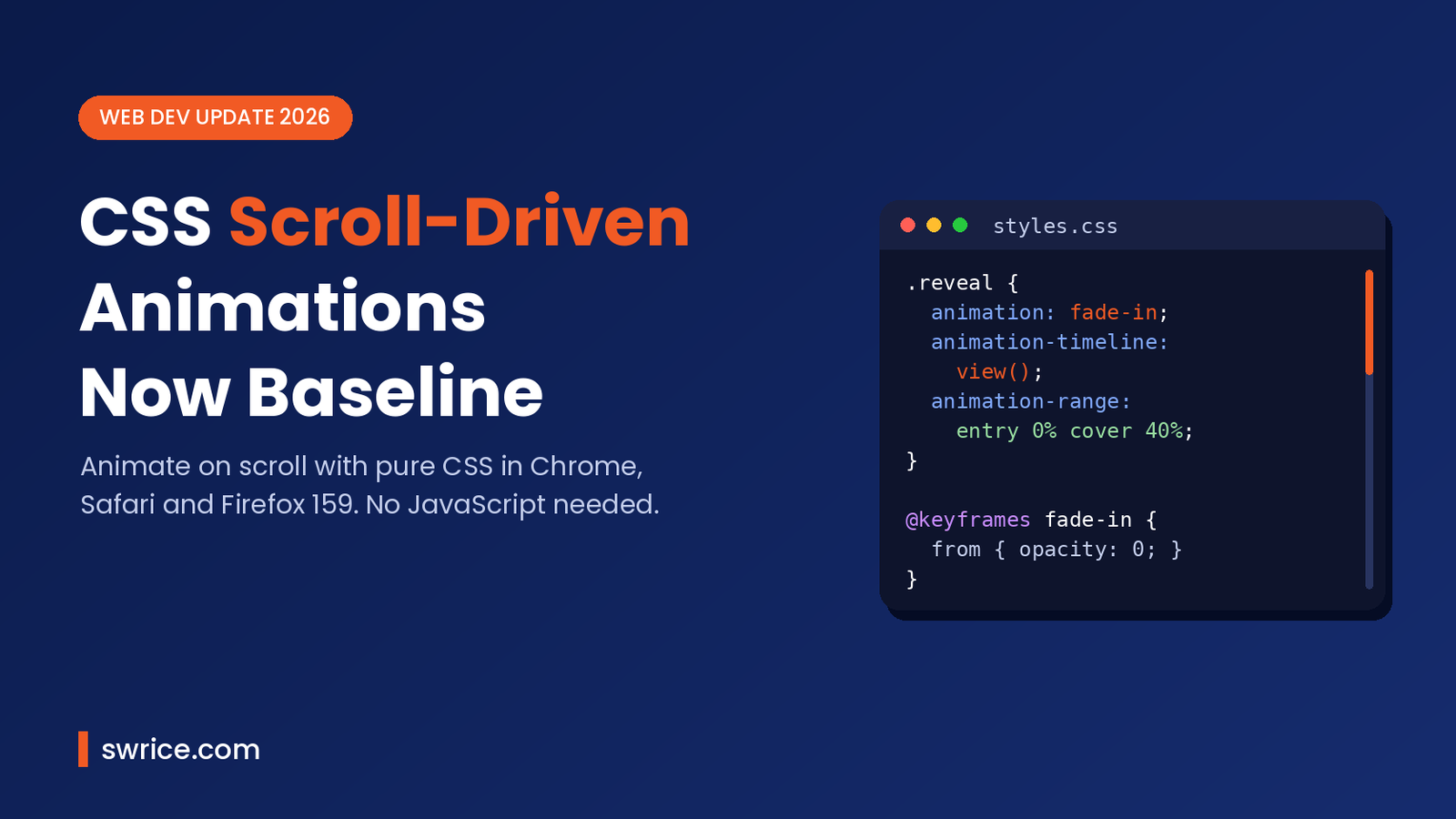
CSS scroll-driven animations are now Baseline, which means they finally work in every major browser engine. Firefox 159 switched the feature on by default in October 2026, joining Chrome, Edge and Safari. As a result, you can tie an animation to the scroll position with a few lines of CSS and no scroll listener.
In this guide, we explain what changed, how the two timeline types work, and how to ship your first effect. We also cover fallbacks, accessibility and performance, so you can use the feature on real client sites today.
What Changed: Firefox 159 Completes the Picture
Chrome and Edge shipped the feature back in version 115. Safari added it in Safari 26. Firefox, however, kept it behind a preference for a long time. That gap stopped many teams from relying on it in production.
Then Firefox 159 enabled it by default. According to the web.dev October 2026 platform roundup, this makes scroll-driven animations “Baseline Newly available”. In other words, the current version of every core browser now supports them.
This is part of a wider trend. The platform keeps absorbing jobs we used to hand to JavaScript. For example, we recently covered React View Transitions and the new CSS random() function. Both follow the same idea: less custom script, more native browser features.
What Are CSS Scroll-Driven Animations?
Normally, a CSS animation runs on a clock. You set a duration, and the browser plays it over time. With CSS scroll-driven animations, the timeline is the scroll position instead. So when the user scrolls down, the animation moves forward. When they scroll back up, it reverses.
You connect an animation to a timeline with the animation-timeline property. There are two kinds of timeline to choose from:
- Scroll progress timeline: tracks how far a scroll container has scrolled, from start to end. You use the
scroll()function or thescroll-timelineproperty. - View progress timeline: tracks an element as it moves through the visible area of its scroller. You use the
view()function or theview-timelineproperty.
Both timelines also work with the Web Animations API. However, most sites will only need the pure CSS version.
Browser Support for CSS Scroll-Driven Animations
Here is the support picture listed on web.dev at the end of October 2026:
- Chrome 115 and later
- Edge 115 and later
- Safari 26 and later
- Firefox 159 and later
“Newly available” is not the same as “widely available”, though. Some visitors still run older browsers. Therefore, you should treat the effect as an enhancement and keep your content readable without it. We show how to do that further down.
Why This Matters for Performance
Classic scroll effects rely on a scroll event listener or an IntersectionObserver. They run on the main thread, so heavy pages can stutter. Native scroll timelines let the browser drive the animation itself. When you animate properties like transform and opacity, it can often run off the main thread. That usually means smoother motion and less JavaScript to download.
Example 1: A Reading Progress Bar
A progress bar at the top of a blog post is the classic first demo. First, add an empty element to your template:
<div class="progress-bar"></div>Next, style it and link it to the page scroll:
.progress-bar {
  position: fixed;
  inset: 0 0 auto 0;
  height: 4px;
  background: #f15a24;
  transform-origin: 0 50%;
  animation: grow-bar linear both;
  animation-timeline: scroll(root block);
}

@keyframes grow-bar {
  from { transform: scaleX(0); }
  to   { transform: scaleX(1); }
}
Here, scroll(root block) means “use the document’s vertical scroll”. Notice that there is no duration in seconds. The scroll position replaces the clock, so the bar fills as the reader moves down the page.
Example 2: Reveal Cards as They Enter the Viewport
Fading content in on scroll used to need a library. Now CSS scroll-driven animations handle it with a view timeline:
.reveal {
  animation: fade-in linear both;
  animation-timeline: view();
  animation-range: entry 0% cover 40%;
}

@keyframes fade-in {
  from { opacity: 0; transform: translateY(40px); }
  to   { opacity: 1; transform: translateY(0); }
}
The animation-range line controls when the effect plays. In this case, it starts as the card begins to enter the viewport. Then it finishes once the card covers 40% of the scrollport. Because of that, the card is fully visible well before the reader reaches it.
Using Named Timelines
Sometimes the scroller and the animated element are not related in a simple way. For instance, a sidebar may react to a separate scrolling panel. In that case, give the scroller a named timeline and reference it by name:
.gallery {
  overflow-x: auto;
  scroll-timeline: --gallery x;
}

.gallery-indicator {
  animation: move-dot linear both;
  animation-timeline: --gallery;
}
Timeline names start with two dashes, just like custom properties. If the element is not a descendant of the scroller, you may also need timeline-scope on a shared ancestor.
How to Ship CSS Scroll-Driven Animations Safely
Since support is new, a few habits will keep your sites solid. First, wrap the effect in a feature query. Older browsers then skip it, and the content simply appears as normal:
@supports (animation-timeline: view()) {
  .reveal {
    animation: fade-in linear both;
    animation-timeline: view();
    animation-range: entry 0% cover 40%;
  }
}
Second, respect users who prefer less motion. Some people feel sick when content moves as they scroll. So turn the effect off for them:
@media (prefers-reduced-motion: reduce) {
  .reveal,
  .progress-bar {
    animation: none;
  }
}
Third, stick to transform and opacity where you can. Animating layout properties such as height or top forces extra work and can hurt smoothness. Finally, never hide important content behind an animation. If the effect fails, the text should still be there.
Should You Replace Your Scroll Library?
For simple effects, CSS scroll-driven animations are well worth trying. Fade-ins, progress bars, parallax headers and sticky shrinking navbars all fit native timelines well. You remove a dependency, cut JavaScript weight and often gain smoother motion.
On the other hand, complex storytelling pages may still need a JavaScript library. Pinned sections with callbacks, snapping logic and timeline scrubbing tools are harder in pure CSS. A good middle path is to move the easy effects to CSS first. After that, keep the library only where it truly adds value.
On WordPress sites, you can add these rules to a child theme stylesheet or the Additional CSS panel. Then give blocks a custom class, such as reveal, in the block’s Advanced settings. That way, editors can apply the effect without touching code.
How to Test Your Animations
Test your CSS scroll-driven animations in all three engines, not just Chrome. In particular, check Firefox 159 or later, since its support is the newest. Also turn on “reduce motion” in your operating system and confirm the effect switches off.
Chrome DevTools has an Animations panel that helps you inspect timelines. If you work with AI agents, our guide to Chrome DevTools MCP shows how to let an agent check pages for you. For the full property reference, the MDN scroll-driven animations guide is the best place to start.
FAQ
Do CSS scroll-driven animations need JavaScript?
No. You can build them entirely in CSS with animation-timeline, scroll() and view(). JavaScript is optional through the Web Animations API.
Which Firefox version supports them?
Firefox 159, released in October 2026, enables them by default. Earlier versions kept the feature behind a preference.
What happens in older browsers?
If you wrap the rules in @supports (animation-timeline: view()), older browsers ignore them. The content then shows without the animation.
Are they good for accessibility?
They can be, as long as you honour prefers-reduced-motion and keep content visible without the effect.
Conclusion
With Firefox 159 on board, CSS scroll-driven animations have moved from experiment to everyday tool. They replace many small scroll scripts, cut page weight and usually feel smoother. Start with a progress bar or a reveal effect, add a feature query and a reduced-motion rule, and then expand from there.
Sources
Need Help With Your Website or Web App?
Swrice builds and customises WordPress sites, plugins and web apps. Whether you need an upgrade, a custom feature or a fix, our team can handle it for you.
Leave a Reply