

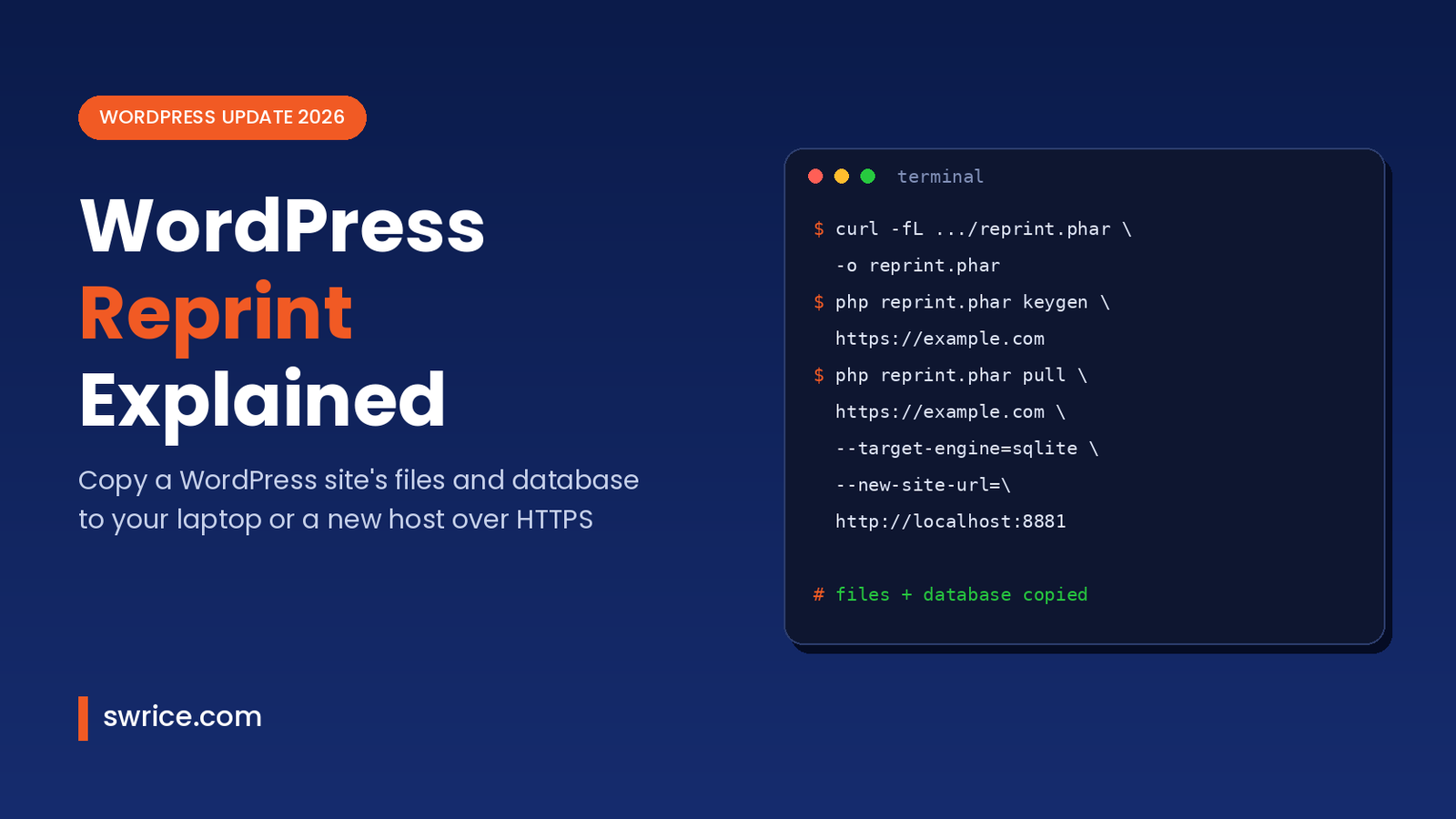
WordPress Reprint is a new, free tool from WordPress.org that copies a full WordPress site, files and database, to your laptop, a staging server or a new host. It was introduced on the official WordPress.org blog on November 13, 2026, and it is already in the Plugin Directory.
If you have ever fought with a huge backup archive or a broken search-replace, this tool is worth a look. In this guide, we explain what it does, how it works, and how to clone your first site step by step.
What Is WordPress Reprint?
Reprint is an open-source, PHP-based tool for copying WordPress sites over HTTP. It has two parts. First, the Reprint plugin runs on the site you want to copy. Second, a command-line client called reprint.phar runs on the computer that receives the copy.
The client pulls the site’s files and database over HTTPS. Then it imports the data, rewrites the site URL and starts a local development server. As a result, you can open the copy in your browser a few minutes later.
The project is maintained by WordPress.org, with Adam Zieliński listed as a contributor. At the time of writing, the plugin is at version 0.11.8 and is tested up to WordPress 7.1.4. So it is still a young tool, and you should treat it that way.
Why WordPress Reprint Matters for Developers
Most migration plugins build one large ZIP archive on the server. On cheap hosting, that often times out. Reprint takes a different approach, and that is the main reason developers are talking about it.
It streams instead of zipping
Reprint streams files and database rows in parts. Your host does not need to build one big archive first. Because of this, very large sites can get across without hitting memory or time limits.
It resumes after failures
If the connection drops, you simply run the same command again. The client keeps its progress in a state/ folder and continues where it stopped. In other words, you do not restart a 20 GB copy from zero.
It rewrites URLs safely
When the address changes, Reprint rewrites links in HTML, block markup, shortcodes, JSON, base64 and serialized PHP data. It also keeps serialized string lengths valid. This is the step that breaks many manual migrations, so it is a big win.
It syncs only what changed
Run a pull again and unchanged files are skipped. Therefore, refreshing a local copy is much faster than the first transfer. Note, however, that a database refresh replaces data. It does not merge your local edits.
How It Compares to Classic Migration Plugins
Classic tools like Duplicator or All-in-One WP Migration work inside wp-admin. You export a package, download it, then upload it somewhere else. That flow is friendly, but it struggles with big sites and strict hosts.
WordPress Reprint, by contrast, is built for the command line. It pulls data straight to the destination, with no upload step in the middle. It also needs no WordPress install on the receiving machine, because the client sets one up for you.
On top of that, you can script WordPress Reprint. It returns exit codes and JSON progress, so agencies and hosts can build it into their own tools. For teams that clone client sites often, that alone could save hours each week.
WordPress Reprint Requirements
Before you start, check both sides of the transfer. According to the plugin FAQ, the requirements are modest.
- Source site: WordPress 4.7 or higher and PHP 5.6.20 or newer, plus administrator access to install the plugin.
- Destination computer: command-line PHP 7.4 or newer, enough disk space, and a terminal on macOS, Linux or WSL.
- Database: SQLite (no server needed) or an empty MySQL database.
- No account: no Reprint account, subscription or SSH access to the source is required.
How to Try WordPress Reprint With the Demo
The safest first step is the public demo. You do not need your own site or a key for this. First, create a folder and download the client:
mkdir try-reprint
cd try-reprint
curl -fL https://plugins.svn.wordpress.org/reprint/downloads/reprint.phar -o reprint.phar
php reprint.phar --version
Next, pull the demo site. The --new-site-url option keeps all links pointing at your local copy:
php reprint.phar pull https://reprint-demo.wordpress.net \
  --state-dir=./state --fs-root=./files \
  --port=8881 --new-site-url=http://localhost:8881 \
  --secret=public-demo
Finally, open http://localhost:8881 in your browser. You should see the demo journal running on your machine.
How to Clone Your Own Site, Step by Step
Once the demo works, you can use WordPress Reprint on a real site. The steps below follow the official Clone your site guide.
Step 1: Install the plugin on the source site
In wp-admin, go to Plugins → Add New Plugin, search for Reprint, then install and activate it. After that, open Tools → Reprint Server and keep the screen open. Activating the plugin does not start a copy on its own.
Step 2: Generate a key and authorize the client
On the destination computer, generate a key for your site’s HTTPS address:
php reprint.phar keygen https://example.com \
  --state-dir=./state --out=./reprint-key.pem
Copy the printed Migration Token. Then paste it into Tools → Reprint Server and choose to authorize the client. The private key never leaves your computer.
Step 3: Pull the site
For a quick local copy with WordPress Reprint, SQLite is the easiest option:
php reprint.phar pull https://example.com \
  --private-key-path=./reprint-key.pem \
  --state-dir=./state --fs-root=./files \
  --target-engine=sqlite --new-site-url=http://localhost:8881
If you prefer MySQL, swap the engine flag for --target-engine=mysql and add your --target-host, --target-db, --target-user and --target-pass values. Keep in mind that some plugins only work with MySQL.
Step 4: Check and restart the copy
Open the home page, click a few internal links, confirm images load, and log in at /wp-admin/. To stop the server, press Ctrl+C. Later, restart it without downloading again:
bash state/runtime/start.shSecurity Tips Before You Copy a Live Site
A full WordPress Reprint copy includes private content, user data, password hashes and configuration secrets. So treat the state/ and files/ folders like production data. Keep them private and off any public web root.
In addition, the copied site may still talk to live email, payment or API services. Disable those connections, or switch them to test keys, before you start working. If you store keys in your code, our guide to the WordPress Secrets API shows a cleaner way to handle them.
Finally, revoke access when you are done. Remove the Migration Token under Tools → Reprint Server. For a broader hardening checklist, see our roundup of the best WordPress security plugins.
WordPress Reprint Limitations to Know
Reprint is promising, but it is not a full deployment pipeline yet. Here are the key limits from the official docs:
- The WordPress.org plugin only supports downloads. It does not accept pushes back to the source site.
- Copying a live site is allowed, but the result is not one frozen snapshot. For a final move, pause orders and uploads first.
- Running
pullagain can overwrite database changes you made locally. - A finished transfer does not guarantee every plugin works at the destination.
Because of these limits, it is a great fit for local development, debugging and testing updates. For example, you could clone a production site and test the WordPress 7.2 beta safely before upgrading.
FAQ
Is WordPress Reprint free?
Yes. It is free, open-source software from WordPress.org, and no account or subscription is needed. The source code lives in the WordPress/reprint repository on GitHub.
Does my data go through a third-party cloud?
No. With WordPress Reprint, files and database rows travel over HTTPS directly to the client you authorize. They do not pass through a Reprint cloud service.
Can I copy a multisite network?
Yes. A network administrator network-activates the plugin and manages access. The handbook also has a guide for moving one site out of a network.
Can I use it to move to a new host?
Yes. The official “Move to another host” guide covers it. Just remember to pause writes and take a final copy before switching DNS.
Conclusion
WordPress Reprint gives developers an official, free way to clone a site without giant archives or fragile search-replace scripts. It streams data, resumes after failures and rewrites URLs safely, even inside serialized data.
It is still early, so start with the demo, then try it on a staging site. Overall, WordPress Reprint looks set to become a standard part of the WordPress developer toolkit in 2026.
Sources
Need Help With Your Website or Web App?
Swrice builds and customises WordPress sites, plugins and web apps. Whether you need an upgrade, a custom feature or a fix, our team can handle it for you.
Leave a Reply