

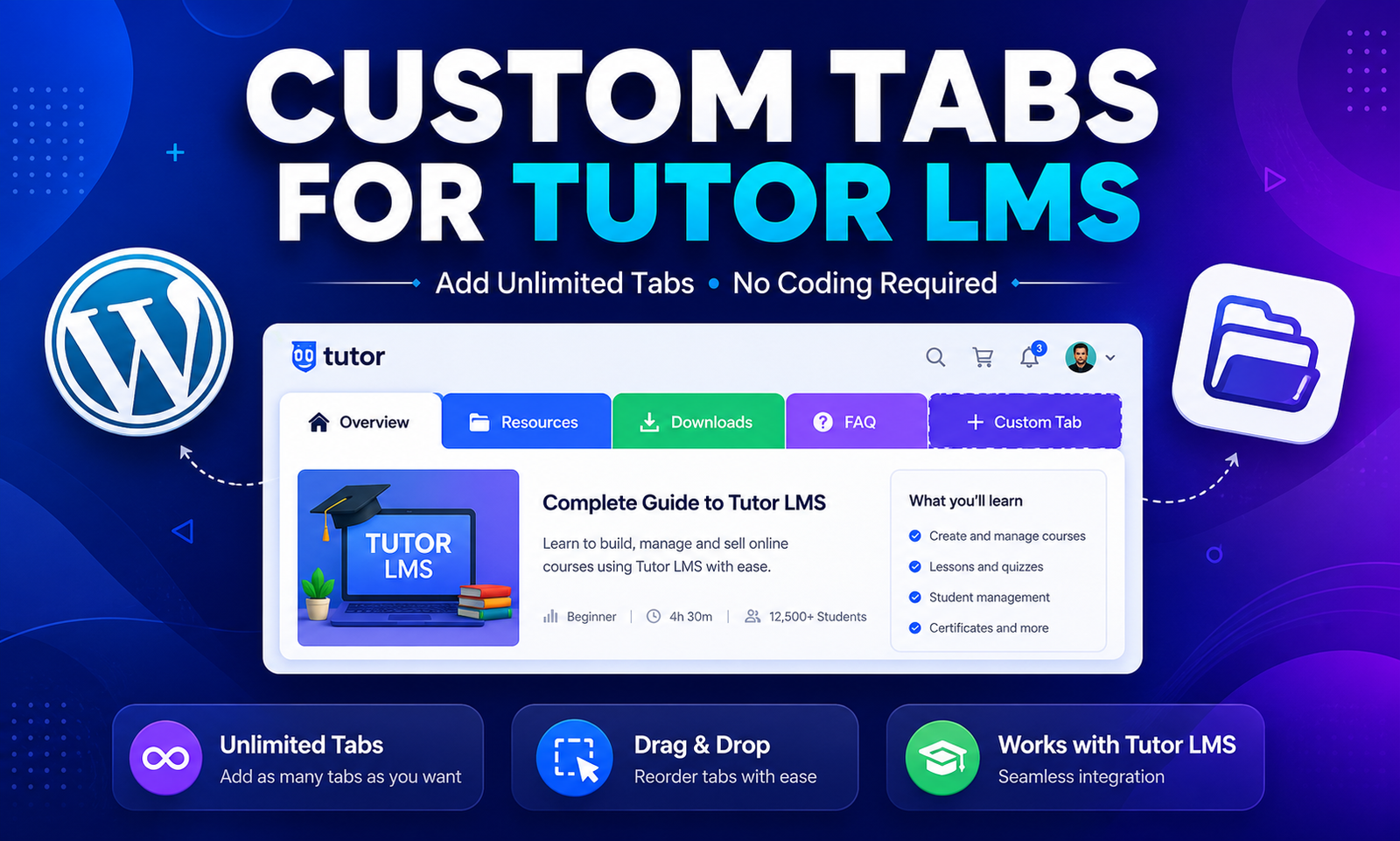
If you’re running an online school with Tutor LMS, you’ve probably hit this wall: your course page only shows “Course Info” and “Resources” tabs, with no easy way to add more. Maybe you want a dedicated “Video Lessons” tab, an “FAQ” tab, or a “Downloads” tab — but Tutor LMS doesn’t give you that option out of the box. In this guide, you’ll learn how to add unlimited custom tabs to your Tutor LMS course pages using the Swrice Custom Tabs for Tutor LMS plugin – no coding required!
Why Custom Tabs Matter for Your Course Page
Before we get into the how-to, let’s understand why this is worth fixing:
- Well-organized tabs help students find exactly what they need without scrolling through one long description
- A dedicated “Video Lessons” or “Downloads” tab makes your course feel more structured and professional
- Clear navigation reduces confusion before enrollment, which means fewer drop-offs
- Custom tabs let you highlight FAQs, instructor notes, or bonus resources without cluttering the main course info
- A polished course page builds trust and makes your platform look more premium
The Problem With Tutor LMS’s Default Tabs
While Tutor LMS is a powerful LMS plugin, its course page comes with a fixed set of tabs and no built-in way to add more. The only official way to do it is to override the course details page template — which means editing core-adjacent files directly. That has some real downsides:
- Your changes can get wiped out every time Tutor LMS releases an update
- One misplaced line of code can break your entire course page
- You need to understand Tutor LMS hooks, filters, and template structure to do it safely
- Most course creators simply don’t have the coding background to attempt it
This Is Where Custom Tabs for Tutor LMS Comes In
The Swrice Custom Tabs for Tutor LMS plugin is a lightweight add-on that transforms how you organize your course details page. Instead of editing template files by hand, it hooks into Tutor LMS the right way — so your custom tabs survive plugin updates and never touch core files.
What You Can Do With It
- Add as many custom tabs as your course needs (Video Lessons, FAQs, Downloads, Instructor Notes, etc.)
- Add rich content to each tab — text, images, embeds, shortcodes
- Reorder tabs to match your course flow
- Show or hide tabs per course, so different courses can have different tab sets
- Keep everything update-safe since nothing touches Tutor LMS core files
How to Set It Up
- Install and activate the Custom Tabs for Tutor LMS add-on
- Go to your course editor and find the new “Custom Tabs” panel
- Add a tab title and content
- Reorder or hide tabs as needed, per course
- Save and preview your course page
That’s it — up and running in just a few minutes, no code editor or child theme required.
Frequently Asked Questions
Will this work with my current Tutor LMS theme?
Yes! The plugin is designed to work with standard Tutor LMS course page layouts.
Do I need coding knowledge to use it?
No. Everything is managed from a simple panel inside your course editor — no code required.
Can I have different tabs for different courses?
Absolutely! You can show or hide specific tabs on a per-course basis.
Will my custom tabs break after a Tutor LMS update?
No. The plugin doesn’t modify Tutor LMS core files, so your tabs stay intact through updates.
Can I add more than one custom tab per course?
Yes, you can add as many tabs as your course needs.
Final Thoughts
A cluttered or incomplete course page is one of the quiet reasons students hesitate before enrolling. The Custom Tabs for Tutor LMS plugin makes it incredibly easy to organize your course content into clear, dedicated tabs — without touching a single line of code. If you need something more specific, like a custom tab design or deeper Tutor LMS customization, get in touch with us and we’ll help you build exactly the course page experience you want.

Leave a Reply