

Custom Tabs for Tutor LMS
Custom Tabs for Tutor LMS lets you add unlimited custom tabs to your Tutor LMS course pages — each with its own per-course rich text content, icon, badge, and access rules. Instead of cramming everything into the course description, give students dedicated tabs for instructions, resources, downloads, announcements, or anything else your course needs.
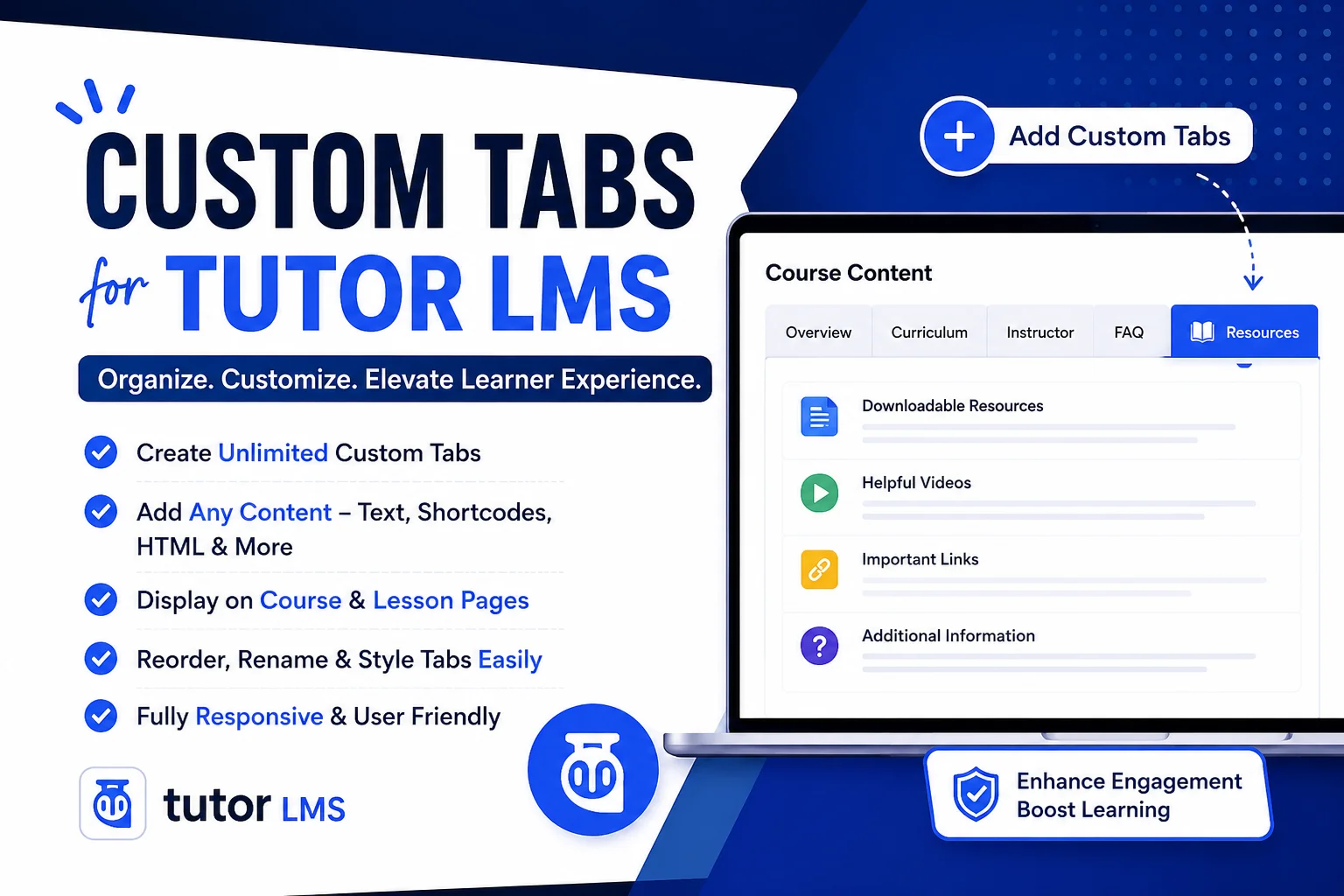
Introducing Smarter Course Tabs for Tutor LMS
Stop overloading your Tutor LMS course description with everything at once. Create clean, dedicated tabs for instructions, prerequisites, downloads, or announcements — each with its own icon, badge, and content — so students find what they need without scrolling through one long wall of text.
How It Works – Simple 3-Step Setup
Install & Activate
Upload Custom Tabs Extended for Tutor LMS, activate it, and a new "Custom Tabs" menu appears under Tutor LMS. No complex configuration required.
Create Your Tab Labels
Go to Tutor LMS → Custom Tabs and add as many tab labels as you need. Set a name, badge text, icon, unlock rule, and allowed user roles for each one — all from a single admin screen.
Add Per-Course Content & Launch
Open any course in the Tutor Course Builder, switch the tab ON, and write course-specific content using the familiar WordPress rich text editor. Save with Tutor's own Update button and the tab appears instantly in the course navigation.
Powerful Features That Drive Results
Unlimited Custom Tabs KEY FEATURE
Create as many tab labels as your courses need, all managed from one screen. Each tab gets its own name, badge text, and icon. Tabs plug directly into Tutor LMS's native course tab navigation — no separate template or page.
Per-Course Rich Text Content
Every course gets its own independent content for each tab, written with the standard WordPress editor. Add formatted text, images, and media right from the Tutor Course Builder. Turn any tab ON or OFF per course — nothing forces you to use every tab on every course.
Role-Based & Progress-Based Access Control
Restrict any tab to specific WordPress/Tutor user roles, or leave it open to all enrolled students. Use the "Progress Percent" unlock rule to hide a tab's content until a student reaches a set course completion percentage. Locked tabs show a clear message telling students exactly what percentage they need to reach.
Icon & Badge Customization
Choose from a built-in dashicon library with a searchable icon picker. Add a badge (like "New" or "Bonus") next to any tab label. Toggle icon visibility per tab with a single switch — show them only where they add value.
Who Is This For?
Course Creators with Detailed Courses
Break long course descriptions into organized tabs — instructions, requirements, FAQs, downloads — so students always find the right section fast.
Membership & Cohort-Based Courses
Use role-based visibility to show mentor notes, cohort announcements, or bonus material only to the students who should see them.
Drip & Progress-Based Learning
Use the progress-percent unlock rule to reveal bonus tabs (like a certificate tab or a wrap-up resource tab) only once students have made real progress.
Agencies Managing Multiple Tutor LMS Sites
Set your tab labels once, then reuse the same tab structure across every course you build for a client.
Frequently Asked Questions
Version & Changelog
Stay updated with the latest features and improvements
Release History
Version Version 1.0.0 — Initial Release
05, July 2026• Global tab labels managed from Tutor LMS → Custom Tabs.
• Per-course ON/OFF switch and rich text editor content added from the Tutor Course Builder.
• Tabs visible only to enrolled users on the frontend.
• Role-based visibility and progress-percent unlock rule per tab.
• Icon picker with searchable dashicon library and optional Show Icon toggle.
• Optional badge text per tab.
• Course Builder ON/OFF state saves together with Tutor LMS's main Update button.
• Improved editor sync so saved content reliably reloads into the editor after refresh.
Ready to Get Started?
Give your Tutor LMS courses cleaner, better-organized tabs today.