

Introduction
Display course progress: Are you running an online course with LearnDash and want to give your students a clear, visual way to track their progress? You’re in the right place!
Student engagement is crucial for course completion rates. Studies show that learners who can visualize their progress are 40% more likely to complete their courses. Yet, many LearnDash site owners struggle to display course progress in an attractive, user-friendly format.
In this comprehensive guide, you’ll learn how to display stunning course progress bars on your LearnDash site using the Swrice LearnDash Course Progress plugin – no coding required!
Why Course Progress Tracking Matters
Before we dive into the how-to, let’s understand why displaying course progress is essential:
1. Boosts Student Motivation
When students see how far they’ve come, they’re motivated to keep going. Visual progress indicators create a sense of achievement.
2. Reduces Course Abandonment
Clear progress tracking helps students understand exactly where they are in their learning journey, reducing confusion and dropout rates.
3. Improves User Experience
A well-designed progress display makes your course platform look professional and polished, enhancing overall user satisfaction.
4. Increases Course Completion Rates
Students who can track their progress are significantly more likely to complete courses, leading to better reviews and testimonials.
The Problem with Default LearnDash Progress Display
While LearnDash is a powerful LMS plugin, its default progress display has some limitations:
- ❌ Limited customization options
- ❌ Not always mobile-responsive
- ❌ Difficult to display on custom pages
- ❌ Lacks detailed lesson-by-lesson breakdown
- ❌ Can’t easily embed in widgets or sidebars
This is where the Swrice LearnDash Course Progress plugin comes in.
Introducing Swrice LearnDash Course Progress Plugin
The Swrice LearnDash Course Progress plugin is a lightweight, powerful add-on that transforms how you display course progress on your LearnDash site.
Key Features
✅ Easy Shortcode Implementation – Just copy and paste
✅ Gutenberg Block Support – Drag and drop in the block editor
✅ Customizable Colors – Match your brand perfectly
✅ Fully Responsive – Looks great on mobile, tablet, and desktop
✅ Widget Compatible – Display in sidebars and footer areas
✅ Detailed Progress Breakdown – Shows lessons, topics, and quizzes separately
✅ Visual Progress Circles – Individual lesson completion indicators
✅ Lightweight & Fast – Won’t slow down your site
✅ Compatible with All LearnDash Themes – Works seamlessly
How to Set Up LearnDash Course Progress (Step-by-Step)
Step 1: Install the Plugin
- Purchase the plugin from
https://swrice.com/learndash-course-progress/ - Download the plugin ZIP file
- Go to WordPress Dashboard → Plugins → Add New
- Click Upload Plugin and select the ZIP file
- Click Install Now, then Activate
Step 2: Configure Your Settings
- Navigate to LearnDash → Progress Settings in your WordPress dashboard
- Choose your preferred General Color to match your brand
- Click Save Changes
That’s it! Your plugin is now configured and ready to use.
Step 3: Display Progress Using Shortcode
The easiest way to display course progress is using the shortcode:
[swr_course_progress course_id=123]
Where to use it
- Course pages
- Student dashboard
- Custom landing pages
- Widget areas
- Any page or post
How to find your Course ID
- Go to LearnDash → Courses
- Hover over your course name
- Look at the URL – the number after
post=is your Course ID
Example
[swr_course_progress course_id=456]
Step 4: Use the Gutenberg Block (Alternative Method)
If you prefer using the WordPress block editor:
- Edit any page or post
- Click the + button to add a new block
- Search for SWR Course Progress
- Add the block to your page
- In the block settings panel (right sidebar)
- Enter your Course ID
- Optionally specify a User ID (defaults to current user)
- Publish or update your page
Step 5: Customize the Display (Optional)
You can customize the appearance by:
- Changing the color scheme in LearnDash → Progress Settings
- Adding custom CSS to match your theme perfectly
- Displaying multiple courses by using multiple shortcodes or blocks
What Your Students Will See
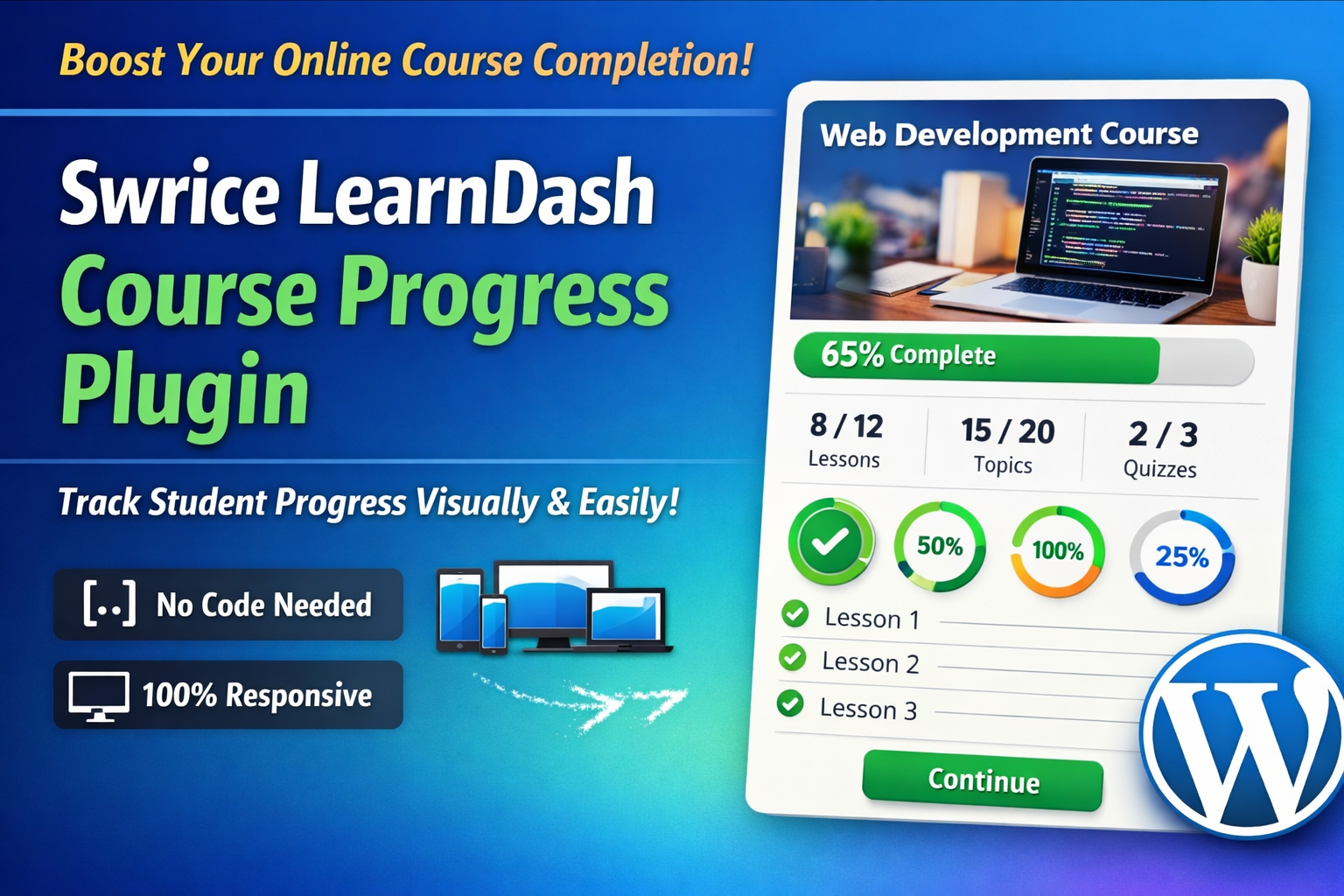
Once implemented, your students will see a beautiful progress card that displays:
Overall Progress Bar
A visual bar showing total course completion percentage
Detailed Breakdown
- Lessons completed (e.g., 5/10 Lessons)
- Topics completed (e.g., 12/20 Topics)
- Quizzes completed (e.g., 3/5 Quizzes)
Individual Lesson Progress
Each lesson shows a circular progress indicator that fills as students complete topics and quizzes within that lesson.
Course Thumbnail
The course featured image displays prominently for easy identification.
Clickable Lesson Links
Students can click on any lesson to jump directly to that content.
Advanced Use Cases
Display Progress in Sidebar Widget
- Go to Appearance → Widgets
- Add a Custom HTML widget to your sidebar
- Paste the shortcode:
[swr_course_progress course_id=123]
- Save the widget
Perfect for keeping progress visible while students navigate your site!
Show Progress for Multiple Courses
Create a custom My Courses page:
<h2>Web Development Course</h2> [swr_course_progress course_id=101]
<h2>Digital Marketing Course</h2> [swr_course_progress course_id=102]
<h2>Graphic Design Course</h2> [swr_course_progress course_id=103]
Display Another User’s Progress (Instructors/Admins)
Instructors can view student progress by specifying a user ID:
[swr_course_progress course_id=123 user_id=456]
SEO Benefits of Better Course Progress Display
Improving your course progress display doesn’t just help students – it helps your SEO too:
1. Increased Time on Site
When students can easily track progress, they spend more time engaged with your content, signaling quality to search engines.
2. Lower Bounce Rates
Clear navigation and progress tracking reduce confusion, keeping visitors on your site longer.
3. Better User Signals
Satisfied students are more likely to share your courses, creating valuable backlinks and social signals.
4. Improved Mobile Experience
Google prioritizes mobile-friendly sites. This plugin ensures your progress display looks perfect on all devices.
Troubleshooting Common Issues
“You must be logged in to view this content”
Solution: This message appears when users aren’t logged in. This is intentional – only enrolled students should see their progress.
“The Course ID is required”
Solution: Make sure you’ve included the course_id parameter in your shortcode:
[swr_course_progress course_id=123]
“You are not enrolled in this course”
Solution: The user viewing the page must be enrolled in the course. Check enrollment status in LearnDash.
Progress not updating
Solution: Clear your site cache and browser cache, then refresh the page.
Frequently Asked Questions
Yes! The plugin is designed to work with all major LearnDash themes and templates.
No. The plugin is lightweight and performance-optimized, with minimal impact on page load times.
Absolutely! Just use multiple shortcodes or blocks with different course IDs.
Yes, as long as users are enrolled in the course (either individually or through a group), their progress will display correctly.
Yes! You can set a custom color in the plugin settings to match your brand.
100% responsive. The progress display adapts beautifully to mobile, tablet, and desktop screens.
Conclusion
Displaying course progress effectively is crucial for student engagement and course completion rates. The Swrice LearnDash Course Progress plugin makes it incredibly easy to add beautiful, functional progress tracking to your LearnDash site.
With both shortcode and Gutenberg block support, customizable colors, and a responsive design, you can have professional course progress displays up and running in just 5 minutes.
Ready to boost your course completion rates?
👉 https://swrice.com/learndash-course-progress/
Your students will thank you for making their learning journey clearer and more engaging.
Related Resources
- LearnDash Documentation
- How to Increase Course Completion Rates
- Best Practices for Online Course Design
About the Author: This guide was created by the team at Swrice, specialists in LearnDash customization and WordPress LMS solutions. We’re passionate about helping course creators build better online learning experiences.
Last Updated: March 2026
Leave a Reply